25 Gamification in Behavioural Research
- Understand core gamification principles and their application to cognitive experimental design
- Create persistent game displays featuring score indicators, health meters, and progression bars
- Implement real-time updates for dynamic game display elements
- Animate visual elements using CSS transitions and sprite sheet techniques
- Integrate audio feedback through sound effects and background music
25.1 Introduction
Gamification refers to the application of game design elements to non-game contexts. In cognitive psychology and behavioral research, we typically prioritize experimental control, stripping away task features that might influence behavior beyond our experimental manipulation. This approach yields simple, monotonous tasks that often cause participant boredom, inattention, and dropout. This is particularly a problem in online settings where distractions abound and experimenters are absent.
Beyond engagement problems, there’s a deeper concern about ecological validity. Our sterile, unengaging tasks may only capture cognition in contexts where participants are bored and unmotivated, missing how people behave when genuinely engaged. We risk studying an impoverished version of human cognition rather than cognition as it operates in natural, motivated contexts.
Gamification addresses these challenges by making research participation more intrinsically rewarding. However, effective gamification requires understanding both the psychological principles that make games engaging and the practical considerations of implementing these principles without compromising scientific rigor.
25.1.1 What Makes Games Engaging?
A game is a system in which players engage in a challenge defined by rules, interactivity, and feedback, resulting in quantifiable outcomes that provoke emotional reactions (Kankanhalli et al., 2012). Gamification strategically borrows these elements to transform otherwise mundane tasks into more compelling experiences.
The effectiveness of gamification rests on Self-Determination Theory (Ryan & Deci, 2000), which identifies three fundamental psychological needs: competence (feeling effective), autonomy (having meaningful choices), and relatedness (social connection). Well-designed gamification satisfies these needs through appropriate game elements. For instance, progress bars and leveling systems provide competence feedback, branching narratives offer autonomy, and leaderboards create social connection through comparison.
Research demonstrates that gamification significantly increases engagement in online programs (Looyestyn et al., 2017) and can improve data quality by maintaining participant attention (Bailey et al., 2015). However, not all gamification is equally effective. Simple reward systems like points and badges tend to lose their motivational power over time as novelty wears off, while elements that tap into intrinsic motivation, such as interesting narratives or genuine challenges, maintain engagement longer.
25.1.2 A Framework for Implementation
Toda et al. (2019) organized game elements into five dimensions that provide a useful framework for thinking about implementation: Performance/Measurement, Social, Ecological, Personal, and Fictional. Rather than treating these as separate categories, effective gamification typically combines elements across dimensions to create cohesive experiences.
25.1.2.1 Performance and Feedback Systems
The most straightforward gamification approach involves adding performance tracking and feedback to existing tasks. Points systems quantify progress, levels create hierarchical advancement, badges mark achievements, and progress bars visualize completion. These elements are relatively easy to implement and provide immediate benefits for participant motivation.
Consider a standard survey that takes 20 minutes to complete. Participants often wonder how much longer they have, leading to frustration and abandonment. Adding a progress bar addresses this uncertainty, while awarding points for each completed section provides a sense of accomplishment. Breaking the survey into “levels” with badges for completion creates additional motivation milestones.
Implementation considerations: Performance systems work best when they provide meaningful information rather than arbitrary numbers. Points should map to actual progress, levels should represent genuine skill or completion milestones, and badges should mark significant achievements. Overly generous reward systems can feel patronizing, while overly stingy ones fail to motivate.
25.1.2.3 Environmental Design
The ecological dimension encompasses how the game environment itself shapes behavior. Time pressure creates urgency, randomness introduces unpredictability, scarcity makes rewards more valuable, and resource constraints force strategic choices. These elements can be powerful tools for maintaining engagement and studying decision-making under different conditions.
FunMaths, developed by Professor Diana Laurillard, demonstrates ecological gamification in educational research. The game teaches arithmetic to children with dyscalculia by having them manipulate virtual beads to match target numbers. The game continuously adapts difficulty to each child’s ability level, ensuring tasks remain challenging but achievable. When children correctly solve problems, the beads disappear in a satisfying visual effect—immediate feedback that reinforces learning.
Implementation considerations: Environmental elements directly affect the behaviors you’re measuring, so they must be chosen carefully. Time pressure, for instance, fundamentally changes decision-making processes. If your research question concerns deliberative reasoning, adding time pressure would be counterproductive. However, if you’re studying decisions under stress, time pressure becomes a key experimental manipulation rather than just a motivational tool.
25.1.2.4 Personalization and Experience
The personal dimension focuses on individual user experience: Is the task novel or repetitive? Simple or challenging? Aesthetically pleasing? These elements operate more subtly than points or badges but can be more powerful for sustaining long-term engagement because they tap into intrinsic rather than extrinsic motivation.
Treasure Collector, developed by Professor Nikolaus Steinbeis, transformed the classic Go/No-Go task (which tests attention and response inhibition) into an adventure game where children train executive function. Participants choose their own avatars and encounter varied scenarios—digging for treasure, stealing gold from dragons, or driving while avoiding ice. This variety prevents the repetition fatigue that typically limits training studies. Children completed approximately 4,000 trials over eight weeks and reported still enjoying the game—an impossible achievement with traditional paradigms.
Implementation considerations: Personalization requires additional development effort but pays off in engagement. Allow participants to customize avatars, choose difficulty levels, or select preferred themes. Vary task presentation even when the underlying structure remains constant. Use appealing visual and audio feedback. These elements require more sophisticated programming but create experiences that participants genuinely enjoy rather than merely tolerate.
25.1.2.5 Narrative Context
The fictional dimension embeds tasks within stories, providing meaning and context that transform abstract exercises into purposeful activities. In narrative-driven gamification, participants may be unaware they’re performing a research task at all—they’re simply playing a game that happens to generate research data.
Sea Hero Quest exemplifies this approach. Disguised as a mobile navigation game, it actually measures spatial cognition to aid dementia research. Players navigate boats through virtual waterways, collecting checkpoints and avoiding obstacles. The game has collected data from 4.3 million players representing over 117 years of equivalent lab time—data that would have cost over £10 million to collect through traditional recruitment. Players participated not for payment but because the game was genuinely entertaining.
Implementation considerations: Narrative gamification requires the most development effort but offers the greatest potential for large-scale data collection and sustained engagement. The story must be coherent and compelling, not just window dressing. Tasks should feel like natural parts of the narrative rather than arbitrary interruptions. This approach works best when you can design the research question around the game mechanics rather than trying to force existing paradigms into a narrative framework.
25.1.3 Two Approaches to Gamified Research
When incorporating gamification into behavioral research, you face a fundamental design choice: should you start with a game and extract measurements, or start with an established experimental task and add game elements? Each approach involves distinct trade-offs between engagement, experimental control, and scientific validity.
25.1.3.1 Starting with a Game, Adding Measurement
In this approach, you design or identify an engaging game, then determine what cognitive processes it measures. This approach is observational in nature. Rather than explicitly manipulating something about the task, you examine conditions naturally arise from playing the game. For instance, if you were interested in task-switching you might identify a game that frequently asks participants to switch between game contexts (e.g., in a strategy game game that could include moving units versus resource allocation in another menu). Then, you would analyze performance data following a task switch, versus repetition. It is observational in nature, because you do not experimentally control when, or how often they switch, you simply observe their behaviour and measure performance.
There a numerous examples of researchers using this approach successfully. Thompson et al. (2016) analyzed gameplay data from StarCraft 2 to study motor skill learning across the lifespan, examining how hundreds of thousands of players developed expertise in a complex real-time strategy game. Sea Hero Quest took this further by designing a mobile navigation game specifically to measure spatial cognition for dementia research, collecting data from 4.3 million voluntary players.
The primary advantage is maximal ecological validity and engagement. Participants play because they want to, generating massive datasets at minimal cost. The task feels natural rather than artificial, potentially revealing how cognitive processes operate in realistic contexts.
However, establishing construct validity is challenging since you must prove your game measures what you think it measures through extensive validation against traditional paradigms. Experimental control suffers because game mechanics optimize for engagement rather than scientific precision. You cannot easily manipulate specific variables while holding others constant, and the game’s complexity makes it difficult to isolate which features drive observed effects.
25.1.3.2 Starting with a Task, Adding Game Elements
This approach begins with an established experimental paradigm and layers game elements on top. Thirkettle et al. (2018) gamified standard cognitive tasks by adding scoring systems, visual feedback, and progression mechanics while maintaining the core experimental structure. This preserves construct validity, since you know exactly what you’re measuring, while improving participant engagement.
You maintain experimental control and can manipulate variables systematically. Development is incremental: start with a working task and add game elements progressively, testing each addition’s impact. You can directly compare gamified and non-gamified versions to quantify benefits. If elements introduce confounds, you can remove them without abandoning the project.
The limitation is that engagement gains can be more modest. Adding points to a boring task makes it less boring but doesn’t create something people play voluntarily. There’s also risk of superficial gamification where game elements that feel tacked on may annoy rather than engage participants.
Some research occupies a middle position. Mitroff et al. developed Airport Scanner, a mobile game requiring players to identify prohibited items in baggage. This is essentially a visual search task disguised as a game. The game was engaging enough to attract voluntary players while maintaining sufficient experimental control to test hypotheses about attention and expertise.
25.1.4 The Ecological Validity vs. Experimental Control Trade-Off
These approaches represent a continuum trading ecological validity for experimental control. Purpose-built games offer high ecological validity but sacrifice precise control needed to test specific hypotheses. Enhanced experimental tasks maintain control but may not generalize as well to real-world behavior.
Which approach is “better” depends on your research goals. Testing a specific theory about cognitive mechanisms requires the control of enhanced experimental tasks. Studying how processes operate in naturalistic settings may justify game-based approaches despite their complexity.
25.1.5 Implementing Gamification in jsPsych
This chapter focuses on starting with established experimental paradigms and adding game elements. There are countless ways to gamify cognitive tasks, from adding simple point systems to including elaborate narratives with branching storylines. Rather than prescribing specific gamification strategies, we’ll focus on the fundamental programming techniques you need to implement whatever gamification approach suits your research. In the following sections, you’ll learn how to build persistent game interfaces, create engaging visual and audio feedback, implement time pressure and adaptive difficulty, and combine these elements into cohesive gamified experiments. Each technique can be applied independently or combined to create increasingly sophisticated experiences while maintaining experimental validity.
25.2 The Game Display
25.2.1 Creating a Persistent Game Display
By default, jsPsych inserts trials directly into the document body, replacing the entire display content as trials change. This works well for traditional experiments but creates problems for gamification. Games typically maintain persistent interface elements like score counters, health bars, timers, progress indicators that remain visible while the core gameplay changes. To achieve this in jsPsych, we need to rethink how we structure our display.
The solution is to create our own custom HTML structure and tell jsPsych to insert trials into a specific element within that structure, leaving the rest of our interface untouched. We control where jsPsych displays trials through the initialization function:
The initialization function accepts parameters as an object with key-value pairs. By setting display_element to 'jspsych-game-display', we instruct jsPsych to look for an HTML element with the id jspsych-game-display and insert trials inside that element rather than directly into the body.
Now we can edit our index.html to include custom HTML structure:
<!DOCTYPE html>
<html>
<head>
<title>Gamification</title>
<!-- jsPsych -->
<script src="jspsych/jspsych.js"></script>
<link href="jspsych/jspsych.css" rel="stylesheet" type="text/css" />
<!-- jsPsych plugins -->
<script src="jspsych/plugin-instructions.js"></script>
<script src="jspsych/plugin-preload.js"></script>
<script src="jspsych/plugin-html-keyboard-response.js"></script>
<script src="jspsych/plugin-html-button-response.js"></script>
<!-- custom CSS -->
<link href="style.css" rel="stylesheet" type="text/css" />
</head>
<body>
<h1>My Game Display</h1>
<div id="game-display">
<div id="jspsych-game-display"> </div>
</div>
<!-- custom JS -->
<script src="exp.js"></script>
</body>
</html>With this structure, the jsPsych experiment renders inside the jspsych-game-display div, while other HTML elements remain untouched. The <h1> header, for instance, stays visible throughout the experiment regardless of what jsPsych displays.
Since you’ve added custom HTML outside jsPsych’s control, you’re responsible for styling these elements. jsPsych’s default CSS only applies to content it generates. You’ll need custom CSS to ensure your display is properly centered and formatted. For example:
body {
display: flex;
justify-content: center;
align-items: center;
flex-direction: column;
min-height: 100vh;
margin: 0;
}
#game-display {
margin: 0 auto;
width: 400px;
height: 300px;
}
#jspsych-game-display {
margin: 0 auto;
width: 100%;
height: 100%;
}You can see this example here, with our code from the Flanker task:
<!DOCTYPE html>
<html>
<head>
<title>Gamification</title>
<!-- jsPsych -->
<script src="jspsych/jspsych.js"></script>
<link href="jspsych/jspsych.css" rel="stylesheet" type="text/css" />
<!-- jsPsych plugins -->
<script src="jspsych/plugin-instructions.js"></script>
<script src="jspsych/plugin-preload.js"></script>
<script src="jspsych/plugin-html-keyboard-response.js"></script>
<script src="jspsych/plugin-html-button-response.js"></script>
<!-- custom CSS -->
<link href="style.css" rel="stylesheet" type="text/css" />
</head>
<body>
<h1>My Game Display</h1>
<div id="game-display">
<div id="jspsych-game-display"> </div>
</div>
<!-- custom JS -->
<script src="exp.js"></script>
</body>
</html>
// ============================================
// Initiate jsPsych
// ============================================
const jsPsych = initJsPsych(
     {display_element: 'jspsych-game-display'}
)
// ============================================
// Welcome
// ============================================
let welcome = {
type: jsPsychHtmlKeyboardResponse,
stimulus: "Welcome to the experiment! Press the space bar to begin.",
choices: " "
}
// ============================================
// Flanker Experimental Block
// ============================================
// fixation
let exp_fixation = {
type: jsPsychHtmlKeyboardResponse,
stimulus: `<p style="font-size:48px">+</p>`,
choices: "NO_KEYS",
post_trial_gap: 250,
trial_duration: 1000,
data: {
trial_part: "fixation"
}
}
// stimulus
let exp_stimulus = {
type: jsPsychHtmlKeyboardResponse,
stimulus: function(){
let target = jsPsych.evaluateTimelineVariable("target");
let distractor = jsPsych.evaluateTimelineVariable("distractor");
let distance = jsPsych.evaluateTimelineVariable("distance");
// Create HTML with custom spacing
let output = `
<p style="margin: 0; font-size: 100px; font-family: monospace;">
${distractor}${distractor}<span style="margin: 0 ${distance}px;">${target}</span>${distractor}${distractor}
</p>`;
return output;
},
choices: ["a", "l"],
trial_duration: 1000,
post_trial_gap: 250,
data: {
trial_part: "stimulus"
},
on_finish: function(data){
// store accuracy
data.correct = jsPsych.pluginAPI.compareKeys(data.response, data.correct_response)
}
}
// exp timeline
let exp_flanker = {
timeline: [
exp_fixation,
exp_stimulus
],
timeline_variables: [
{ target: "<", distractor: "<", distance: 0, congruency: "congruent", correct_response: "a" },
{ target: "<", distractor: "<", distance: 50, congruency: "congruent", correct_response: "a" },
{ target: "<", distractor: ">", distance: 0, congruency: "incongruent", correct_response: "a" },
{ target: "<", distractor: ">", distance: 50, congruency: "incongruent", correct_response: "a" },
{ target: ">", distractor: "<", distance: 0, congruency: "incongruent", correct_response: "l" },
{ target: ">", distractor: "<", distance: 50, congruency: "incongruent", correct_response: "l" },
{ target: ">", distractor: ">", distance: 0, congruency: "congruent", correct_response: "l" },
{ target: ">", distractor: ">", distance: 50, congruency: "congruent", correct_response: "l" }
],
randomize_order: true,
data: {
phase: "flanker",
target: jsPsych.timelineVariable("target"),
distractor: jsPsych.timelineVariable("distractor"),
congruency: jsPsych.timelineVariable("congruency"),
correct_response: jsPsych.timelineVariable("correct_response")
}
};
// ============================================
// Savd Data Trial
// ============================================
const saveData = {
type: jsPsychHtmlKeyboardResponse,
stimulus: `
<div style="text-align: center;">
<p>Experiment complete!</p>
<p>Click the button below to save your data locally:</p>
<button id="save-btn" style="padding: 10px 20px; font-size: 16px; cursor: pointer;">
Click here to save the data locally
</button>
</div>
`,
choices: "NO_KEYS",
trial_duration: null,
on_load: function() {
document.getElementById("save-btn").addEventListener("click", function() {
jsPsych.data.get().localSave("csv", "faceInversion_data.csv");
});
},
data: {
phase: "save data trial"
}
};
// ============================================
// Run jsPsych
// ============================================
jsPsych.run([
welcome,
exp_flanker,
saveData
]); The real power of this approach becomes apparent when we create more sophisticated layouts. Games typically need space around the central display for interface elements like scores, health indicators, timers, and maps. We can achieve this using CSS Grid or Flexbox layouts.
Here’s an example using CSS Grid to create a game interface with persistent elements surrounding the jsPsych display:
 <!DOCTYPE html>
<html>
<head>
    <title>Gamification</title>
    <!-- jsPsych -->
    <script src="jspsych/jspsych.js"></script>
    <link href="jspsych/jspsych.css" rel="stylesheet" type="text/css" />

    <!-- jsPsych plugins -->
    <script src="jspsych/plugin-instructions.js"></script>
    <script src="jspsych/plugin-preload.js"></script>
    <script src="jspsych/plugin-html-keyboard-response.js"></script>
    <script src="jspsych/plugin-html-button-response.js"></script>

    <!-- custom CSS -->
    <link href="style.css" rel="stylesheet" type="text/css" />
</head>
<body>
  <div class="game-display">
    <div class="grid">
      <div class="top-left">top-left</div>
      <div class="top">top</div>
      <div class="top-right">top-right</div>

      <div class="left">left</div>
      <div id="jspsych-game-display" class="center">center</div>
      <div class="right">right</div>

      <div class="bottom-left">bottom-left</div>
      <div class="bottom">bottom</div>
      <div class="bottom-right">bottom-right</div>
    </div>
  </div>
  <!-- custom JS -->
  <script src="exp.js"></script>
</body>
</html>
// ============================================
// Initiate jsPsych
// ============================================

const jsPsych = initJsPsych(
                  {display_element: 'jspsych-game-display'}
                )

// ============================================
// Welcome
// ============================================

let welcome = {
  type: jsPsychHtmlKeyboardResponse,
  stimulus: "Welcome to the experiment! Press the space bar to begin.",
  choices: " "
}

// ============================================
// Flanker Experimental Block
// ============================================

// fixation
let exp_fixation = {
    type: jsPsychHtmlKeyboardResponse,
    stimulus: `<p style="font-size:48px">+</p>`,
    choices: "NO_KEYS",
    post_trial_gap: 250,
    trial_duration: 1000,
    data: {
      trial_part: "fixation"
    }
}

// stimulus
let exp_stimulus = {
    type: jsPsychHtmlKeyboardResponse,
    stimulus: function(){
        let target = jsPsych.evaluateTimelineVariable("target");
        let distractor = jsPsych.evaluateTimelineVariable("distractor");
        let distance = jsPsych.evaluateTimelineVariable("distance");

        // Create HTML with custom spacing
        let output = `
            <div style="font-size: 100px; font-family: monospace;">
              ${distractor}${distractor}<span style="margin: 0 ${distance}px;">${target}</span>${distractor}${distractor}
            </div>`;

        return output;
    },
    choices: ["a", "l"],
    trial_duration: 1000,
    post_trial_gap: 250,
    data: {
      trial_part: "stimulus"
    },
    on_finish: function(data){
        // store accuracy
        data.correct = jsPsych.pluginAPI.compareKeys(data.response, data.correct_response)
    }
}

// exp timeline
let exp_flanker = {
    timeline: [
        exp_fixation,
        exp_stimulus
    ],
    timeline_variables: [
        { target: "<", distractor: "<", distance: 0, congruency: "congruent", correct_response: "a" },
        { target: "<", distractor: "<", distance: 50, congruency: "congruent", correct_response: "a"  },
        { target: "<", distractor: ">", distance: 0, congruency: "incongruent", correct_response: "a"  },
        { target: "<", distractor: ">", distance: 50, congruency: "incongruent", correct_response: "a"  },
        { target: ">", distractor: "<", distance: 0, congruency: "incongruent", correct_response: "l"  },
        { target: ">", distractor: "<", distance: 50, congruency: "incongruent", correct_response: "l" },
        { target: ">", distractor: ">", distance: 0, congruency: "congruent", correct_response: "l" },
        { target: ">", distractor: ">", distance: 50, congruency: "congruent", correct_response: "l" }
    ],
    randomize_order: true,
    data: {
      phase: "flanker",
      target: jsPsych.timelineVariable("target"),
      distractor: jsPsych.timelineVariable("distractor"),
      congruency: jsPsych.timelineVariable("congruency"),
      correct_response: jsPsych.timelineVariable("correct_response")
    }
};


// ============================================
// Savd Data Trial
// ============================================

const saveData = {
  type: jsPsychHtmlKeyboardResponse,
  stimulus: `
    <div style="text-align: center;">
      <p>Experiment complete!</p>
      <p>Click the button below to save your data locally:</p>
      <button id="save-btn" style="padding: 10px 20px; font-size: 16px; cursor: pointer;">
        Click here to save the data locally
      </button>
    </div>
  `,
  choices: "NO_KEYS",
  trial_duration: null,
  on_load: function() {
    document.getElementById("save-btn").addEventListener("click", function() {
      jsPsych.data.get().localSave("csv", "faceInversion_data.csv");
    });
  },
  data: {
    phase: "save data trial"
  }
};

// ============================================
// Run jsPsych
// ============================================

jsPsych.run([
  welcome,
  exp_flanker,
  saveData
]);
body {
display: flex;
justify-content: center;
align-items: center;
min-height: 100vh;
margin: 0;
}
.game-display {
margin: 0 auto;
width: 750px;
height: 400px;
}
.grid {
width: 100%;
height: 100%;
display: grid;
grid-template-columns: repeat(6, 1fr);
grid-template-rows: repeat(8, 1fr);
grid-template-areas:
"top-left top-left top top top-right top-right"
"left center center center center right"
"left center center center center right"
"left center center center center right"
"left center center center center right"
"left center center center center right"
"left center center center center right"
"bottom-left bottom bottom bottom bottom bottom-right";
}
/* Grid area assignments */
.top-left { grid-area: top-left; }
.top-right { grid-area: top-right; }
.top { grid-area: top; }
.center { grid-area: center; }
.left { grid-area: left; }
.right { grid-area: right; }
.bottom-left { grid-area: bottom-left; }
.bottom-right { grid-area: bottom-right; }
.bottom { grid-area: bottom; }
/* Grid area color assignments */
.grid > div:nth-child(9n + 1) {
background: rgba(255, 102, 102, 0.4);
}
.grid > div:nth-child(9n + 2) {
background: rgba(255, 204, 102, 0.4);
}
.grid > div:nth-child(9n + 3) {
background: rgba(255, 255, 102, 0.4);
}
.grid > div:nth-child(9n + 4) {
background: rgba(102, 255, 102, 0.4);
}
.grid > div:nth-child(9n + 5) {
background: rgba(102, 102, 255, 0.4);
}
.grid > div:nth-child(9n + 6) {
background: rgba(204, 102, 255, 0.4);
}
.grid > div:nth-child(9n + 7) {
background: rgba(255, 102, 255, 0.4);
}
.grid > div:nth-child(9n + 8) {
background: rgba(84, 255, 159, 0.4);
}
.grid > div:nth-child(9n + 9) {
background: rgba(132, 112, 255, 0.4);
}
This creates a complete game interface with header, sidebars, and footer that remain persistent while jsPsych trials change in the central display area. You can now populate these persistent elements with game information that updates dynamically as participants progress through your experiment.
The key insight is that once you separate jsPsych’s display area from your overall page structure, you gain complete control over the participant’s visual experience. You can create interfaces that look and feel like games while maintaining the experimental rigor of jsPsych underneath. In the following sections, we’ll explore how to make these persistent elements dynamic, updating them in response to participant performance and creating truly engaging gamified experiences.
Now let’s see something more polished. Here’s an arcade-style game interface that wraps our Flanker task in a retro gaming aesthetic:
 <!DOCTYPE html>
<html>
<head>
    <title>Gamification</title>
    <!-- jsPsych -->
    <script src="jspsych/jspsych.js"></script>
    <link href="jspsych/jspsych.css" rel="stylesheet" type="text/css" />

    <!-- jsPsych plugins -->
    <script src="jspsych/plugin-instructions.js"></script>
    <script src="jspsych/plugin-preload.js"></script>
    <script src="jspsych/plugin-html-keyboard-response.js"></script>
    <script src="jspsych/plugin-html-button-response.js"></script>

    <!-- custom CSS -->
    <link href="style.css" rel="stylesheet" type="text/css" />
</head>
<body>
    <div class="game-display">
    <div class="grid">
      <div class="top-left">
        <div class="score-display">
          <div class="label">SCORE</div>
          <div class="value">000000</div>
        </div>
      </div>
      <div class="top">
        <div class="game-title">PSYCH QUEST</div>
      </div>
      <div class="top-right">
        <div class="score-display">
          <div class="label">HI-SCORE</div>
          <div class="value">999999</div>
        </div>
      </div>

      <div class="left">
        <div class="lives-display">
          <div class="label">LIVES</div>
          <div class="hearts">❤️ ❤️ ❤️</div>
        </div>
      </div>
      <div id="jspsych-game-display" class="center">center</div>
      <div class="right">
        <div class="level-display">
          <div class="label">LEVEL</div>
          <div class="level-number">01</div>
        </div>
      </div>

      <div class="bottom-left">
        <div class="coin-slot">
          INSERT COIN
        </div>
      </div>
      <div class="bottom">
        <div class="controls-hint">
          Shoot the Center Target! (A for < and L for >)
        </div>
      </div>
      <div class="bottom-right">
        <div class="credit-display">
          CREDITS: 5
        </div>
      </div>
    </div>
  </div>
  <!-- custom JS -->
  <script src="exp.js"></script>
</body>
</html>
// ============================================
// Initiate jsPsych
// ============================================

const jsPsych = initJsPsych(
                  {display_element: 'jspsych-game-display'}
                )

// ============================================
// Welcome
// ============================================

let welcome = {
  type: jsPsychHtmlKeyboardResponse,
  stimulus: "Welcome to the experiment! Press the space bar to begin.",
  choices: " "
}

// ============================================
// Flanker Experimental Block
// ============================================

// fixation
let exp_fixation = {
    type: jsPsychHtmlKeyboardResponse,
    stimulus: `<p style="font-size:48px">+</p>`,
    choices: "NO_KEYS",
    post_trial_gap: 250,
    trial_duration: 1000,
    data: {
      trial_part: "fixation"
    }
}

// stimulus
let exp_stimulus = {
    type: jsPsychHtmlKeyboardResponse,
    stimulus: function(){
        let target = jsPsych.evaluateTimelineVariable("target");
        let distractor = jsPsych.evaluateTimelineVariable("distractor");
        let distance = jsPsych.evaluateTimelineVariable("distance");

        // Create HTML with custom spacing
        let output = `
            <div style="font-size: 100px; font-family: monospace;">
              ${distractor}${distractor}<span style="margin: 0 ${distance}px;">${target}</span>${distractor}${distractor}
            </div>`;

        return output;
    },
    choices: ["a", "l"],
    trial_duration: 1000,
    post_trial_gap: 250,
    data: {
      trial_part: "stimulus"
    },
    on_finish: function(data){
        // store accuracy
        data.correct = jsPsych.pluginAPI.compareKeys(data.response, data.correct_response)
    }
}

// exp timeline
let exp_flanker = {
    timeline: [
        exp_fixation,
        exp_stimulus
    ],
    timeline_variables: [
        { target: "<", distractor: "<", distance: 0, congruency: "congruent", correct_response: "a" },
        { target: "<", distractor: "<", distance: 50, congruency: "congruent", correct_response: "a"  },
        { target: "<", distractor: ">", distance: 0, congruency: "incongruent", correct_response: "a"  },
        { target: "<", distractor: ">", distance: 50, congruency: "incongruent", correct_response: "a"  },
        { target: ">", distractor: "<", distance: 0, congruency: "incongruent", correct_response: "l"  },
        { target: ">", distractor: "<", distance: 50, congruency: "incongruent", correct_response: "l" },
        { target: ">", distractor: ">", distance: 0, congruency: "congruent", correct_response: "l" },
        { target: ">", distractor: ">", distance: 50, congruency: "congruent", correct_response: "l" }
    ],
    randomize_order: true,
    data: {
      phase: "flanker",
      target: jsPsych.timelineVariable("target"),
      distractor: jsPsych.timelineVariable("distractor"),
      congruency: jsPsych.timelineVariable("congruency"),
      correct_response: jsPsych.timelineVariable("correct_response")
    }
};


// ============================================
// Savd Data Trial
// ============================================

const saveData = {
  type: jsPsychHtmlKeyboardResponse,
  stimulus: `
    <div style="text-align: center;">
      <p>Experiment complete!</p>
      <p>Click the button below to save your data locally:</p>
      <button id="save-btn" style="padding: 10px 20px; font-size: 16px; cursor: pointer;">
        Click here to save the data locally
      </button>
    </div>
  `,
  choices: "NO_KEYS",
  trial_duration: null,
  on_load: function() {
    document.getElementById("save-btn").addEventListener("click", function() {
      jsPsych.data.get().localSave("csv", "faceInversion_data.csv");
    });
  },
  data: {
    phase: "save data trial"
  }
};

// ============================================
// Run jsPsych
// ============================================

jsPsych.run([
  welcome,
  exp_flanker,
  saveData
]);
@import url("https://fonts.googleapis.com/css2?family=Press+Start+2P&display=swap");
body {
display: flex;
justify-content: center;
align-items: center;
min-height: 100vh;
margin: 0;
background: #0a0a0a;
font-family: "Press Start 2P", cursive;
}
.game-display {
margin: 0 auto;
width: 750px;
height: 400px;
background: #1a1a2e;
border: 8px solid #ff6b35;
border-radius: 20px;
box-shadow:
0 0 20px rgba(255, 107, 53, 0.5),
0 0 40px rgba(255, 107, 53, 0.3),
inset 0 0 60px rgba(0, 0, 0, 0.5);
padding: 5px;
}
.grid {
width: 100%;
height: 100%;
display: grid;
grid-template-columns: repeat(6, 1fr);
grid-template-rows: repeat(8, 1fr);
grid-template-areas:
"top-left top-left top top top-right top-right"
"left center center center center right"
"left center center center center right"
"left center center center center right"
"left center center center center right"
"left center center center center right"
"left center center center center right"
"bottom-left bottom bottom bottom bottom bottom-right";
gap: 5px;
}
/* Grid area assignments */
.top-left { grid-area: top-left; }
.top-right { grid-area: top-right; }
.top { grid-area: top; }
.center { grid-area: center; }
.left { grid-area: left; }
.right { grid-area: right; }
.bottom-left { grid-area: bottom-left; }
.bottom-right { grid-area: bottom-right; }
.bottom { grid-area: bottom; }
/* Arcade styling for all sections */
.grid > div {
background: #16213e;
border: 3px solid #0f3460;
border-radius: 8px;
display: flex;
align-items: center;
justify-content: center;
color: #00ff41;
text-shadow: 0 0 10px #00ff41;
font-size: 14px;
padding: 10px;
box-shadow: inset 0 0 20px rgba(0, 255, 65, 0.1);
}
/* Center jsPsych display - keep clean */
.center {
background: #000;
border: 4px solid #00ff41;
box-shadow:
0 0 20px rgba(0, 255, 65, 0.4),
inset 0 0 30px rgba(0, 255, 65, 0.1);
color: #fff;
text-shadow: none;
}
/* Top section - Title */
.game-title {
font-size: 24px;
color: #ff6b35;
text-align: center;
text-shadow:
0 0 10px #ff6b35,
0 0 20px #ff6b35,
2px 2px 0 #000;
animation: glow 2s ease-in-out infinite alternate;
}
@keyframes glow {
from { text-shadow: 0 0 10px #ff6b35, 0 0 20px #ff6b35, 2px 2px 0 #000; }
to { text-shadow: 0 0 20px #ff6b35, 0 0 30px #ff6b35, 2px 2px 0 #000; }
}
/* Score displays */
.score-display {
display: flex;
flex-direction: column;
gap: 8px;
text-align: center;
}
.score-display .label {
font-size: 8px;
color: #ffd700;
text-shadow: 0 0 5px #ffd700;
}
.score-display .value {
font-size: 16px;
color: #00ff41;
text-shadow: 0 0 10px #00ff41;
}
/* Lives display */
.lives-display {
display: flex;
flex-direction: column;
gap: 10px;
align-items: center;
}
.lives-display .label {
font-size: 8px;
color: #ff6b9d;
text-shadow: 0 0 5px #ff6b9d;
}
.hearts {
font-size: 16px;
filter: drop-shadow(0 0 5px #ff0066);
display: flex;
flex-direction: column;
gap: 5px;
}
/* Level display */
.level-display {
display: flex;
flex-direction: column;
gap: 10px;
align-items: center;
}
.level-display .label {
font-size: 8px;
color: #00d9ff;
text-shadow: 0 0 5px #00d9ff;
}
.level-number {
font-size: 24px;
color: #00d9ff;
text-shadow: 0 0 10px #00d9ff;
}
/* Bottom section */
.coin-slot {
font-size: 8px;
color: #ffd700;
text-shadow: 0 0 8px #ffd700;
animation: blink 1.5s ease-in-out infinite;
}
@keyframes blink {
0%, 49% { opacity: 1; }
50%, 100% { opacity: 0.3; }
}
.controls-hint {
font-size: 8px;
color: #888;
text-shadow: none;
text-align: center;
line-height: 1.6;
}
.credit-display {
font-size: 8px;
color: #ffd700;
text-shadow: 0 0 8px #ffd700;
}
/* Scanline effect overlay */
.game-display::before {
content: '';
position: absolute;
top: 0;
left: 0;
width: 100%;
height: 100%;
background: repeating-linear-gradient(
0deg,
rgba(0, 0, 0, 0.15),
rgba(0, 0, 0, 0.15) 1px,
transparent 1px,
transparent 2px
);
pointer-events: none;
border-radius: 20px;
}
This arcade-style interface transforms the same Flanker task into something that feels like a retro video game. The persistent elements like score, high score, lives, and level remain visible while the jsPsych trials change in the center screen area. The styling uses gradients, shadows, and glowing effects to create an arcade aesthetic that is a bit more engaging than default display.
Of course, this final example has some complex HTML and CSS that you may not fully understand, the important takeaway is that once you separate jsPsych’s display area from your overall page structure, you gain complete control over the participant’s visual experience. You can create interfaces ranging from minimal and professional to elaborate and playful, all while maintaining the experimental rigor of jsPsych underneath. In the following sections, we’ll explore how to make these persistent elements dynamic, updating them in response to participant performance.
25.2.2 Updating the Game Display
Now that we have a persistent display structure, we need to make it dynamic so that it can update scores, lives, timers, and other game elements as participants progress through the experiment. To accomplish this, we need to understand how JavaScript interacts with HTML elements on the page.
When a web browser loads an HTML page, it creates a Document Object Model (DOM). The DOM is a tree-like representation of all the HTML elements on the page. JavaScript can access and manipulate this DOM to change what appears on screen without reloading the page.
Think of the DOM as a live connection between your JavaScript code and what participants see. When you change something in the DOM, the browser immediately updates the display. This is how we can update a score counter or health bar in real-time as participants complete trials.
To modify an HTML element, we first need to tell JavaScript which element we want to change. We do this using document.querySelector(), which searches the DOM for an element matching a specific selector.
The most common way to select elements is by their id attribute. Recall that in HTML, we can give elements unique identifiers:
In JavaScript, we can select this element using:
Notice the # symbol before the id name. This tells querySelector() to look for an element with that specific id. The function returns a reference to that element, which we store in a variable (here called scoreElement).
You can also select elements by other attributes:
// Select by class (note the . prefix)
let button = document.querySelector('.start-button');

// Select by element type
let firstDiv = document.querySelector('div');

// Select by more complex CSS selectors
let specificElement = document.querySelector('div.game-info#score');
Important: querySelector() returns only the first element that matches your selector. If you need to select multiple elements, use querySelectorAll() instead, which returns a list of all matching elements.
Once you’ve selected an element, you can change what it displays using the textContent property:
This changes the text inside the element from whatever it was before to ‘100’. The change happens immediately so participants will see the updated score on their screen right after you modify the element.
You can also use innerHTML if you want to include HTML formatting:
Note: Use textContent for plain text and innerHTML when you need to include HTML tags or special characters. Be cautious with innerHTML if you’re inserting user-provided content, as it can create security vulnerabilities.
You can also modify an element’s CSS styling through JavaScript using the style property:
let scoreElement = document.querySelector('#score-display');
scoreElement.style.color = 'gold';
scoreElement.style.fontSize = '32px';
scoreElement.style.fontWeight = 'bold';
Note that CSS property names with hyphens (like font-size) become camelCase in JavaScript (like fontSize).
Now that we understand the basic principles for updating the DOM, we can apply those from within jsPsych. Recall that we can use the on_finish function to run any code we want after the trial finishes. Before, we used that to update our data. However, we can also use that function to update the DOM to change the score. We could do something like this:
let trial = {
  type: jsPsychKeyboardResponse,
  stimulus: "red",
  choices: ["r"],
  on_finish: function(){
    let scoreElement = document.querySelector('#score-display');

    scoreElement.textContent = "1000"

    scoreElement.style.color = 'gold';
    scoreElement.style.fontSize = '32px';
    scoreElement.style.fontWeight = 'bold';
  }
}
This would immediately update the score display to gold text with “1000”. One missing piece of this puzzle is that we’ll also need to track the score across trials. That is, in order to add or subtract from the score, we’ll need to know what the current score is in real-time. We’ve done something similar to this before when we tracked the number missed trials in the previous chapters:
// track the current score
let score = 0

let trial = {
  type: jsPsychKeyboardResponse,
  stimulus: "red",
  choices: ["r"],
  on_finish: function(){
    let scoreElement = document.querySelector('#score-display');

    // add to the score after they have responded
    scoreElement.textContent = score + 100

    scoreElement.style.color = 'gold';
    scoreElement.style.fontSize = '32px';
    scoreElement.style.fontWeight = 'bold';
  }
}
Now our score is dynamic! It starts at 0 and adds 100 points after they respond in this trial.
25.2.3 Example 1: Updating the Score
Let’s create a full example now using the simple grid display from above. I’ll update the score in the top-right grid position, adding points if they are correct and subtracting points if they are incorrect.
Note that I’m updating the index.html, style.css, and exp.js files here.
 <!DOCTYPE html>
<html>
<head>
    <title>Gamification</title>
    <!-- jsPsych -->
    <script src="jspsych/jspsych.js"></script>
    <link href="jspsych/jspsych.css" rel="stylesheet" type="text/css" />

    <!-- jsPsych plugins -->
    <script src="jspsych/plugin-preload.js"></script>
    <script src="jspsych/plugin-html-keyboard-response.js"></script>

    <!-- custom CSS -->
    <link href="style.css" rel="stylesheet" type="text/css" />
</head>
<body>
  <div class="game-display">
    <div class="grid">
      <div class="top-left">top-left</div>
      <div class="top">top</div>
      <div class="top-right">
        <div id="score-container">
          <p> SCORE: <span id="score-display">0</span> </p>
        </div>
      </div>

      <div class="left">left</div>
      <div id="jspsych-game-display" class="center">center</div>
      <div class="right">right</div>

      <div class="bottom-left">bottom-left</div>
      <div class="bottom">bottom</div>
      <div class="bottom-right">bottom-right</div>
    </div>
  </div>
  <!-- custom JS -->
  <script src="exp.js"></script>
</body>
</html>
// ============================================
// Initiate jsPsych
// ============================================

const jsPsych = initJsPsych(
                  {display_element: 'jspsych-game-display'}
                )

// ============================================
// Trackers
// ============================================

// current score
let score = 0


// ============================================
// Welcome
// ============================================

let welcome = {
  type: jsPsychHtmlKeyboardResponse,
  stimulus: "Welcome to the experiment! Press the space bar to begin.",
  choices: " "
}

// ============================================
// Flanker Experimental Block
// ============================================

// fixation
let exp_fixation = {
    type: jsPsychHtmlKeyboardResponse,
    stimulus: `<p style="font-size:48px">+</p>`,
    choices: "NO_KEYS",
    post_trial_gap: 250,
    trial_duration: 1000,
    data: {
      trial_part: "fixation"
    }
}

// stimulus
let exp_stimulus = {
    type: jsPsychHtmlKeyboardResponse,
    stimulus: function(){
        let target = jsPsych.evaluateTimelineVariable("target");
        let distractor = jsPsych.evaluateTimelineVariable("distractor");
        let distance = jsPsych.evaluateTimelineVariable("distance");

        // Create HTML with custom spacing
        let output = `
            <div style="font-size: 100px; font-family: monospace;">
              ${distractor}${distractor}<span style="margin: 0 ${distance}px;">${target}</span>${distractor}${distractor}
            </div>`;

        return output;
    },
    choices: ["a", "l"],
    trial_duration: 1000,
    post_trial_gap: 250,
    data: {
      trial_part: "stimulus"
    },
    on_finish: function(data){
        // store accuracy
        data.correct = jsPsych.pluginAPI.compareKeys(data.response, data.correct_response)

        // get score element
        let scoreElement = document.querySelector("#score-display")

        // update score
        if(data.correct){
          score = score + 10
        } else {
          score = score - 10
        }

        // update score element
        scoreElement.textContent = score
    }
}

// exp timeline
let exp_flanker = {
    timeline: [
        exp_fixation,
        exp_stimulus
    ],
    timeline_variables: [
        { target: "<", distractor: "<", distance: 0, congruency: "congruent", correct_response: "a" },
        { target: "<", distractor: "<", distance: 50, congruency: "congruent", correct_response: "a"  },
        { target: "<", distractor: ">", distance: 0, congruency: "incongruent", correct_response: "a"  },
        { target: "<", distractor: ">", distance: 50, congruency: "incongruent", correct_response: "a"  },
        { target: ">", distractor: "<", distance: 0, congruency: "incongruent", correct_response: "l"  },
        { target: ">", distractor: "<", distance: 50, congruency: "incongruent", correct_response: "l" },
        { target: ">", distractor: ">", distance: 0, congruency: "congruent", correct_response: "l" },
        { target: ">", distractor: ">", distance: 50, congruency: "congruent", correct_response: "l" }
    ],
    randomize_order: true,
    data: {
      phase: "flanker",
      target: jsPsych.timelineVariable("target"),
      distractor: jsPsych.timelineVariable("distractor"),
      congruency: jsPsych.timelineVariable("congruency"),
      correct_response: jsPsych.timelineVariable("correct_response")
    }
};


// ============================================
// Savd Data Trial
// ============================================

const saveData = {
  type: jsPsychHtmlKeyboardResponse,
  stimulus: `
    <div style="text-align: center;">
      <p>Experiment complete!</p>
      <p>Click the button below to save your data locally:</p>
      <button id="save-btn" style="padding: 10px 20px; font-size: 16px; cursor: pointer;">
        Click here to save the data locally
      </button>
    </div>
  `,
  choices: "NO_KEYS",
  trial_duration: null,
  on_load: function() {
    document.getElementById("save-btn").addEventListener("click", function() {
      jsPsych.data.get().localSave("csv", "faceInversion_data.csv");
    });
  },
  data: {
    phase: "save data trial"
  }
};

// ============================================
// Run jsPsych
// ============================================

jsPsych.run([
  welcome,
  exp_flanker,
  saveData
]);
body {
display: flex;
justify-content: center;
align-items: center;
min-height: 100vh;
margin: 0;
}
.game-display {
margin: 0 auto;
width: 750px;
height: 400px;
}
.grid {
width: 100%;
height: 100%;
display: grid;
grid-template-columns: repeat(6, 1fr);
grid-template-rows: repeat(6, 1fr);
grid-template-areas:
"top-left top-left top top top-right top-right"
"left center center center center right"
"left center center center center right"
"left center center center center right"
"left center center center center right"
"bottom-left bottom bottom bottom bottom bottom-right";
}
/* Grid area assignments */
.top-left {
grid-area: top-left;
background: rgba(255, 102, 102, 0.4);
}
.top-right {
grid-area: top-right;
background: rgba(255, 204, 102, 0.4);
}
.top {
grid-area: top;
background: rgba(255, 255, 102, 0.4);
}
.center {
grid-area: center;
background: rgba(102, 102, 255, 0.4);
}
.left {
grid-area: left;
background: rgba(204, 102, 255, 0.4);
}
.right {
grid-area: right;
background: rgba(255, 102, 255, 0.4);
}
.bottom-left {
grid-area: bottom-left;
background: rgba(84, 255, 159, 0.4);
}
.bottom-right {
grid-area: bottom-right;
background: rgba(132, 112, 255, 0.4);
}
.bottom {
grid-area: bottom;
background: rgba(255, 102, 255, 0.4);
}
#score-container {
display: flex;
text-align: center;
align-items: center;
justify-content: center;
}
25.2.4 Example 2: Updating a Health Bar
We can easily expand on those basic principles to update anything we want. For instance, we could create a health bar and remove health whenever they make an error:
 <!DOCTYPE html>
<html>
<head>
    <title>Gamification</title>
    <!-- jsPsych -->
    <script src="jspsych/jspsych.js"></script>
    <link href="jspsych/jspsych.css" rel="stylesheet" type="text/css" />

    <!-- jsPsych plugins -->
    <script src="jspsych/plugin-instructions.js"></script>
    <script src="jspsych/plugin-preload.js"></script>
    <script src="jspsych/plugin-html-keyboard-response.js"></script>
    <script src="jspsych/plugin-html-button-response.js"></script>

    <!-- custom CSS -->
    <link href="style.css" rel="stylesheet" type="text/css" />
</head>
<body>
<div class="game-display">
  <div class="grid">
    <div class="top-left">
      <div id="health-container">
        <span class="label">HEALTH</span>
          <div id="health-bar">
            <div id="health-fill"></div>
          </div>
          <span id="health-text">100/100</span>
        </div>
    </div>
    <div class="top"></div>
    <div class="top-right"></div>

    <div class="left"></div>
    <div id="jspsych-game-display" class="center"></div>
    <div class="right"></div>

    <div class="bottom-left"></div>
    <div class="bottom"></div>
    <div class="bottom-right"></div>
  </div>
</div>
  <!-- custom JS -->
  <script src="exp.js"></script>
</body>
</html>
// ============================================
// Initiate jsPsych
// ============================================

const jsPsych = initJsPsych(
                  {display_element: 'jspsych-game-display'}
                )

// ============================================
// Trackers
// ============================================

// current health
let health = 100;


// ============================================
// Welcome
// ============================================

let welcome = {
  type: jsPsychHtmlKeyboardResponse,
  stimulus: "Welcome to the experiment! Press the space bar to begin.",
  choices: " "
}

// ============================================
// Flanker Experimental Block
// ============================================

// fixation
let exp_fixation = {
    type: jsPsychHtmlKeyboardResponse,
    stimulus: `<p style="font-size:48px">+</p>`,
    choices: "NO_KEYS",
    post_trial_gap: 250,
    trial_duration: 1000,
    data: {
      trial_part: "fixation"
    }
}

// stimulus
let exp_stimulus = {
    type: jsPsychHtmlKeyboardResponse,
    stimulus: function(){
        let target = jsPsych.evaluateTimelineVariable("target");
        let distractor = jsPsych.evaluateTimelineVariable("distractor");
        let distance = jsPsych.evaluateTimelineVariable("distance");

        // Create HTML with custom spacing
        let output = `
            <div style="font-size: 100px; font-family: monospace;">
              ${distractor}${distractor}<span style="margin: 0 ${distance}px;">${target}</span>${distractor}${distractor}
            </div>`;

        return output;
    },
    choices: ["a", "l"],
    trial_duration: 1000,
    post_trial_gap: 250,
    data: {
      trial_part: "stimulus"
    },
    on_finish: function(data){
        // store accuracy
        data.correct = jsPsych.pluginAPI.compareKeys(data.response, data.correct_response)

        // Select the health display elements
        let healthFill = document.querySelector("#health-fill");
        let healthText = document.querySelector("#health-text");

        // only remove health if incorrect
        if(!data.correct){
            health = health - 25

            if(health < 0){
               health = 0
            }

            // Update the visual bar
            healthFill.style.width = health + "%";

            // Update the text display
            healthText.textContent = health + "/100"

            // Change color based on health level
            if (health > 60) {
              healthFill.style.background = "linear-gradient(90deg, #2ecc71, #27ae60)";
            } else if (health > 30) {
              healthFill.style.background = "linear-gradient(90deg, #f39c12, #e67e22)";
            } else {
              healthFill.style.background = "linear-gradient(90deg, #e74c3c, #c0392b)";
            }
        }
    }
}

// exp timeline
let exp_flanker = {
    timeline: [
        exp_fixation,
        exp_stimulus
    ],
    timeline_variables: [
        { target: "<", distractor: "<", distance: 0, congruency: "congruent", correct_response: "a" },
        { target: "<", distractor: "<", distance: 50, congruency: "congruent", correct_response: "a"  },
        { target: "<", distractor: ">", distance: 0, congruency: "incongruent", correct_response: "a"  },
        { target: "<", distractor: ">", distance: 50, congruency: "incongruent", correct_response: "a"  },
        { target: ">", distractor: "<", distance: 0, congruency: "incongruent", correct_response: "l"  },
        { target: ">", distractor: "<", distance: 50, congruency: "incongruent", correct_response: "l" },
        { target: ">", distractor: ">", distance: 0, congruency: "congruent", correct_response: "l" },
        { target: ">", distractor: ">", distance: 50, congruency: "congruent", correct_response: "l" }
    ],
    randomize_order: true,
    data: {
      phase: "flanker",
      target: jsPsych.timelineVariable("target"),
      distractor: jsPsych.timelineVariable("distractor"),
      congruency: jsPsych.timelineVariable("congruency"),
      correct_response: jsPsych.timelineVariable("correct_response")
    }
};


// ============================================
// Savd Data Trial
// ============================================

const saveData = {
  type: jsPsychHtmlKeyboardResponse,
  stimulus: `
    <div style="text-align: center;">
      <p>Experiment complete!</p>
      <p>Click the button below to save your data locally:</p>
      <button id="save-btn" style="padding: 10px 20px; font-size: 16px; cursor: pointer;">
        Click here to save the data locally
      </button>
    </div>
  `,
  choices: "NO_KEYS",
  trial_duration: null,
  on_load: function() {
    document.getElementById("save-btn").addEventListener("click", function() {
      jsPsych.data.get().localSave("csv", "faceInversion_data.csv");
    });
  },
  data: {
    phase: "save data trial"
  }
};

// ============================================
// Run jsPsych
// ============================================

jsPsych.run([
  welcome,
  exp_flanker,
  saveData
]);
body {
display: flex;
justify-content: center;
align-items: center;
min-height: 100vh;
margin: 0;
}
.game-display {
margin: 0 auto;
width: 750px;
height: 400px;
}
.grid {
width: 100%;
height: 100%;
display: grid;
grid-template-columns: repeat(6, 1fr);
grid-template-rows: repeat(6, 1fr);
grid-template-areas:
"top-left top-left top top top-right top-right"
"left center center center center right"
"left center center center center right"
"left center center center center right"
"left center center center center right"
"bottom-left bottom bottom bottom bottom bottom-right";
}
/* Grid area assignments */
.top-left {
grid-area: top-left;
background: rgba(255, 102, 102, 0.4);
}
.top-right {
grid-area: top-right;
background: rgba(255, 204, 102, 0.4);
}
.top {
grid-area: top;
background: rgba(255, 255, 102, 0.4);
}
.center {
grid-area: center;
background: rgba(102, 102, 255, 0.4);
}
.left {
grid-area: left;
background: rgba(204, 102, 255, 0.4);
}
.right {
grid-area: right;
background: rgba(255, 102, 255, 0.4);
}
.bottom-left {
grid-area: bottom-left;
background: rgba(84, 255, 159, 0.4);
}
.bottom-right {
grid-area: bottom-right;
background: rgba(132, 112, 255, 0.4);
}
.bottom {
grid-area: bottom;
background: rgba(255, 102, 255, 0.4);
}
#health-container {
padding: 8px;
}
.label {
font-size: 12px;
font-weight: bold;
margin-bottom: 5px;
}
#health-bar {
width: 100%;
height: 10px;
background-color: #ddd;
border: 2px solid #333;
}
#health-fill {
height: 100%;
width: 100%;
background-color: #e74c3c;
}
#health-text {
font-size: 14px;
text-align: center;
}
25.2.5 Example 3: Updating a Progress Bar
 <!DOCTYPE html>
<html>
<head>
    <title>Gamification</title>
    <!-- jsPsych -->
    <script src="jspsych/jspsych.js"></script>
    <link href="jspsych/jspsych.css" rel="stylesheet" type="text/css" />

    <!-- jsPsych plugins -->
    <script src="jspsych/plugin-instructions.js"></script>
    <script src="jspsych/plugin-preload.js"></script>
    <script src="jspsych/plugin-html-keyboard-response.js"></script>
    <script src="jspsych/plugin-html-button-response.js"></script>

    <!-- custom CSS -->
    <link href="style.css" rel="stylesheet" type="text/css" />
</head>
<body>
<div class="game-display">
<div class="game-display">
  <div class="grid">
    <div class="top-left"></div>
    <div class="top"></div>
    <div class="top-right"></div>

    <div class="left"></div>
    <div id="jspsych-game-display" class="center"></div>
    <div class="right"></div>

    <div class="bottom-left"></div>
    <div class="bottom">
        <div id="progress-container">
          <span class="label">PROGRESS</span>
          <div id="progress-bar">
            <div id="progress-fill"></div>
          </div>
          <span id="progress-text">0/8</span>
        </div>
    </div>
    <div class="bottom-right"></div>
  </div>
</div>
  <!-- custom JS -->
  <script src="exp.js"></script>
</body>
</html>
// ============================================
// Initiate jsPsych
// ============================================

const jsPsych = initJsPsych(
                  {display_element: 'jspsych-game-display'}
                )

// ============================================
// Trackers
// ============================================

// progress variables
let totalTrials = 8;
let currentTrial = 0;

// ============================================
// Welcome
// ============================================

let welcome = {
  type: jsPsychHtmlKeyboardResponse,
  stimulus: "Welcome to the experiment! Press the space bar to begin.",
  choices: " "
}

// ============================================
// Flanker Experimental Block
// ============================================

// fixation
let exp_fixation = {
    type: jsPsychHtmlKeyboardResponse,
    stimulus: `<p style="font-size:48px">+</p>`,
    choices: "NO_KEYS",
    post_trial_gap: 250,
    trial_duration: 1000,
    data: {
      trial_part: "fixation"
    }
}

// stimulus
let exp_stimulus = {
    type: jsPsychHtmlKeyboardResponse,
    stimulus: function(){
        let target = jsPsych.evaluateTimelineVariable("target");
        let distractor = jsPsych.evaluateTimelineVariable("distractor");
        let distance = jsPsych.evaluateTimelineVariable("distance");

        // Create HTML with custom spacing
        let output = `
            <div style="font-size: 100px; font-family: monospace;">
              ${distractor}${distractor}<span style="margin: 0 ${distance}px;">${target}</span>${distractor}${distractor}
            </div>`;

        return output;
    },
    choices: ["a", "l"],
    trial_duration: 1000,
    post_trial_gap: 250,
    data: {
      trial_part: "stimulus"
    },
    on_finish: function(data){
      // store accuracy
      data.correct = jsPsych.pluginAPI.compareKeys(data.response, data.correct_response)

      // Select progress elements
      let progressFill = document.querySelector("#progress-fill");
      let progressText = document.querySelector("#progress-text");

      // Calculate percentage remaining
      currentTrial = currentTrial + 1

      let progressPercent = (currentTrial / totalTrials) * 100;

      // Update the visual bar
      progressFill.style.width = progressPercent + "%";

      // Update the text display
      progressText.textContent = currentTrial + "/" + totalTrials;

    }
}

// exp timeline
let exp_flanker = {
    timeline: [
        exp_fixation,
        exp_stimulus
    ],
    timeline_variables: [
        { target: "<", distractor: "<", distance: 0, congruency: "congruent", correct_response: "a" },
        { target: "<", distractor: "<", distance: 50, congruency: "congruent", correct_response: "a"  },
        { target: "<", distractor: ">", distance: 0, congruency: "incongruent", correct_response: "a"  },
        { target: "<", distractor: ">", distance: 50, congruency: "incongruent", correct_response: "a"  },
        { target: ">", distractor: "<", distance: 0, congruency: "incongruent", correct_response: "l"  },
        { target: ">", distractor: "<", distance: 50, congruency: "incongruent", correct_response: "l" },
        { target: ">", distractor: ">", distance: 0, congruency: "congruent", correct_response: "l" },
        { target: ">", distractor: ">", distance: 50, congruency: "congruent", correct_response: "l" }
    ],
    randomize_order: true,
    data: {
      phase: "flanker",
      target: jsPsych.timelineVariable("target"),
      distractor: jsPsych.timelineVariable("distractor"),
      congruency: jsPsych.timelineVariable("congruency"),
      correct_response: jsPsych.timelineVariable("correct_response")
    }
};


// ============================================
// Savd Data Trial
// ============================================

const saveData = {
  type: jsPsychHtmlKeyboardResponse,
  stimulus: `
    <div style="text-align: center;">
      <p>Experiment complete!</p>
      <p>Click the button below to save your data locally:</p>
      <button id="save-btn" style="padding: 10px 20px; font-size: 16px; cursor: pointer;">
        Click here to save the data locally
      </button>
    </div>
  `,
  choices: "NO_KEYS",
  trial_duration: null,
  on_load: function() {
    document.getElementById("save-btn").addEventListener("click", function() {
      jsPsych.data.get().localSave("csv", "faceInversion_data.csv");
    });
  },
  data: {
    phase: "save data trial"
  }
};

// ============================================
// Run jsPsych
// ============================================

jsPsych.run([
  welcome,
  exp_flanker,
  saveData
]);
body {
display: flex;
justify-content: center;
align-items: center;
min-height: 100vh;
margin: 0;
}
.game-display {
margin: 0 auto;
width: 750px;
height: 400px;
}
.grid {
width: 100%;
height: 100%;
display: grid;
grid-template-columns: repeat(6, 1fr);
grid-template-rows: repeat(6, 1fr);
grid-template-areas:
"top-left top-left top top top-right top-right"
"left center center center center right"
"left center center center center right"
"left center center center center right"
"left center center center center right"
"bottom-left bottom bottom bottom bottom bottom-right";
}
/* Grid area assignments */
.top-left {
grid-area: top-left;
background: rgba(255, 102, 102, 0.4);
}
.top-right {
grid-area: top-right;
background: rgba(255, 204, 102, 0.4);
}
.top {
grid-area: top;
background: rgba(255, 255, 102, 0.4);
}
.center {
grid-area: center;
background: rgba(102, 102, 255, 0.4);
}
.left {
grid-area: left;
background: rgba(204, 102, 255, 0.4);
}
.right {
grid-area: right;
background: rgba(255, 102, 255, 0.4);
}
.bottom-left {
grid-area: bottom-left;
background: rgba(84, 255, 159, 0.4);
}
.bottom-right {
grid-area: bottom-right;
background: rgba(132, 112, 255, 0.4);
}
.bottom {
grid-area: bottom;
background: rgba(255, 102, 255, 0.4);
}
.label {
font-size: 12px;
font-weight: bold;
margin-bottom: 5px;
}
#progress-container {
padding: 10px;
}
#progress-bar {
width: 100%;
height: 10px;
background-color: #ddd;
border: 2px solid #333;
}
#progress-fill {
height: 100%;
width: 0%;
background-color: #3498db;
}
#progress-text {
font-size: 14px;
text-align: center;
}
25.2.6 Setting Up and Clearing the Display
In the examples above, game elements like health bars and score displays appear immediately when the experiment launches. This works well when your experiment begins directly with trials, but often you’ll want more control over when these elements appear and disappear.
Consider a typical experiment structure: you start with instruction screens, then move to the main task with game elements, and finally show debriefing or results. You don’t want score indicators visible during instructions, and you don’t want game interface elements cluttering the screen during debriefing. Managing when elements appear and disappear creates a cleaner, more professional experience.
We can control display elements using jsPsych’s timeline callbacks: on_timeline_start and on_timeline_finish. As their names suggest, on_timeline_start executes immediately before a timeline begins, while on_timeline_finish executes immediately after the final trial in that timeline completes.
These callbacks let us add game elements right before they’re needed and remove them when they’re no longer relevant. This approach keeps your display clean and prevents confusion about which phase of the experiment participants are in.
25.2.6.1 Adding Elements at Timeline Start
Let’s look at an example where we start with empty grid areas and populate them when the main task begins.
<div class="game-display">
  <div class="grid">
    <div class="top-left"></div>
    <div class="top"></div>
    <div class="top-right"></div>

    <div class="left"></div>
    <div id="jspsych-game-display" class="center"></div>
    <div class="right"></div>

    <div class="bottom-left"></div>
    <div class="bottom"></div>
    <div class="bottom-right"></div>
  </div>
</div>
Notice the top-left and top-right divs are empty! There is no health bar or score display yet. We’ll add those elements programmatically:
// exp timeline
let exp_flanker = {
    timeline: [
        exp_fixation,
        exp_stimulus
    ],
    timeline_variables: [/* timeline variables */],
    randomize_order: true,
    data: {
      phase: "flanker",
      target: jsPsych.timelineVariable("target"),
      distractor: jsPsych.timelineVariable("distractor"),
      congruency: jsPsych.timelineVariable("congruency"),
      correct_response: jsPsych.timelineVariable("correct_response")
    },
    on_timeline_start: function(){
        // get top-left element
        let topLeft = document.querySelector(".top-left")
        topLeft.innerHTML = ` <div id="health-container">
                               <div id="health-bar">
                                  <div id="health-fill"></div>
                                </div>
                                <span id="health-text">100/100</span>
                              </div>`

        // get top-right element
        let topRight = document.querySelector(".top-right")
        topRight.innerHTML = `<div id="score-container">
                                  <p> SCORE: <span id="score-display">0</span> </p>
                              </div>`

    }
};
By setting the innerHTML property, we insert HTML content into the selected elements. This completely replaces whatever was inside those divs (in this case, nothing) with our game interface elements. The health bar and score display now appear exactly when the main task timeline begins.
25.2.6.2 Removing Elements at Timeline Finish
After the task completes, we should clean up these elements to prepare for the next phase:
// exp timeline
let exp_flanker = {
    timeline: [
        exp_fixation,
        exp_stimulus
    ],
    timeline_variables: [/* timeline variables */],
    randomize_order: true,
    data: {
      phase: "flanker",
      target: jsPsych.timelineVariable("target"),
      distractor: jsPsych.timelineVariable("distractor"),
      congruency: jsPsych.timelineVariable("congruency"),
      correct_response: jsPsych.timelineVariable("correct_response")
    },
    on_timeline_start: function(){
        // get top-left element
        let topLeft = document.querySelector(".top-left")
        topLeft.innerHTML = ` <div id="health-container">
                               <div id="health-bar">
                                  <div id="health-fill"></div>
                                </div>
                                <span id="health-text">100/100</span>
                              </div>`

        // get top-right element
        let topRight = document.querySelector(".top-right")
        topRight.innerHTML = `<div id="score-container">
                                  <p> SCORE: <span id="score-display">0</span> </p>
                              </div>`

    },
    on_timeline_finish: function(){
        // clear the top left and top right displays
        // get top-left element
        let topLeft = document.querySelector(".top-left")
        topLeft.innerHTML = ""

        // get top-right element
        let topRight = document.querySelector(".top-right")
        topRight.innerHTML = ""
    }
};
Setting innerHTML to an empty string ("") removes all content from those divs, leaving them blank. This cleanup is important because it provides visual clarity so participants aren’t confused by game elements appearing during non-game phases. It also creates clean transitions where each phase of your experiment starts with a fresh display, prevents errors where subsequent code might accidentally try to update elements that should no longer be visible, and gives the experiment a polished and professional presentation.
When working with dynamic display elements, add elements only when needed rather than showing game interfaces during instructions or debriefing. Always clean up by removing elements when a timeline finishes to prevent clutter. Consider resetting game variables like score and health in on_timeline_start if you’re running multiple blocks. Finally, test your transitions to verify that elements appear and disappear at the right times.
This pattern of adding and removing elements gives you complete control over your experiment’s visual presentation, allowing you to create distinct phases that feel appropriate for each stage of the participant’s experience.
25.2.6.3 Full Example
Here’s the full example code that starts with the clear display, adds the health bar and score indicator for the flanker trials, then removes them at the end:
 <!DOCTYPE html>
<html>
<head>
    <title>Gamification</title>
    <!-- jsPsych -->
    <script src="jspsych/jspsych.js"></script>
    <link href="jspsych/jspsych.css" rel="stylesheet" type="text/css" />

    <!-- jsPsych plugins -->
    <script src="jspsych/plugin-instructions.js"></script>
    <script src="jspsych/plugin-preload.js"></script>
    <script src="jspsych/plugin-html-keyboard-response.js"></script>
    <script src="jspsych/plugin-html-button-response.js"></script>

    <!-- custom CSS -->
    <link href="style.css" rel="stylesheet" type="text/css" />
</head>
<body>
<div class="game-display">
  <div class="grid">
    <div class="top-left">
      <div id="health-container">
        <span class="label">HEALTH</span>
          <div id="health-bar">
            <div id="health-fill"></div>
          </div>
          <span id="health-text">100/100</span>
        </div>
    </div>
    <div class="top"></div>
    <div class="top-right" id="score-container">
      <p> SCORE: <span id="score-display">0</span> </p>
    </div>

    <div class="left"></div>
    <div id="jspsych-game-display" class="center"></div>
    <div class="right"></div>

    <div class="bottom-left"></div>
    <div class="bottom"></div>
    <div class="bottom-right"></div>
  </div>
</div>
  <!-- custom JS -->
  <script src="exp.js"></script>
</body>
</html>
// ============================================
// Initiate jsPsych
// ============================================

const jsPsych = initJsPsych(
                  {display_element: 'jspsych-game-display'}
                )

// ============================================
// Trackers
// ============================================

// current score
let score = 0

// current health
let health = 100;


// ============================================
// Welcome
// ============================================

let welcome = {
  type: jsPsychHtmlKeyboardResponse,
  stimulus: "Welcome to the experiment! Press the space bar to begin.",
  choices: " "
}

// ============================================
// Flanker Experimental Block
// ============================================

// fixation
let exp_fixation = {
    type: jsPsychHtmlKeyboardResponse,
    stimulus: `<p style="font-size:48px">+</p>`,
    choices: "NO_KEYS",
    post_trial_gap: 250,
    trial_duration: 1000,
    data: {
      trial_part: "fixation"
    }
}

// stimulus
let exp_stimulus = {
    type: jsPsychHtmlKeyboardResponse,
    stimulus: function(){
        let target = jsPsych.evaluateTimelineVariable("target");
        let distractor = jsPsych.evaluateTimelineVariable("distractor");
        let distance = jsPsych.evaluateTimelineVariable("distance");

        // Create HTML with custom spacing
        let output = `
            <div style="font-size: 100px; font-family: monospace;">
              ${distractor}${distractor}<span style="margin: 0 ${distance}px;">${target}</span>${distractor}${distractor}
            </div>`;

        return output;
    },
    choices: ["a", "l"],
    trial_duration: 1000,
    post_trial_gap: 250,
    data: {
      trial_part: "stimulus"
    },
    on_finish: function(data){
        // store accuracy
        data.correct = jsPsych.pluginAPI.compareKeys(data.response, data.correct_response)

        // get score element
        let scoreElement = document.querySelector("#score-display")

        // only add score on correct response
        if(data.correct){
          score = score + 10
        }

        // update score element
        scoreElement.textContent = score


        // Select the health display elements
        let healthFill = document.querySelector("#health-fill");
        let healthText = document.querySelector("#health-text");

        // only remove health if incorrect
        if(!data.correct){
            health = health - 25

            if(health < 0){
               health = 0
            }

            // Update the visual bar
            healthFill.style.width = health + "%";

            // Update the text display
            healthText.textContent = health + "/100"

            // Change color based on health level
            if (health > 60) {
              healthFill.style.background = "linear-gradient(90deg, #2ecc71, #27ae60)";
            } else if (health > 30) {
              healthFill.style.background = "linear-gradient(90deg, #f39c12, #e67e22)";
            } else {
              healthFill.style.background = "linear-gradient(90deg, #e74c3c, #c0392b)";
            }

        }


    }
}

// exp timeline
let exp_flanker = {
    timeline: [
        exp_fixation,
        exp_stimulus
    ],
    timeline_variables: [
        { target: "<", distractor: "<", distance: 0, congruency: "congruent", correct_response: "a" },
        { target: "<", distractor: "<", distance: 50, congruency: "congruent", correct_response: "a"  },
        { target: "<", distractor: ">", distance: 0, congruency: "incongruent", correct_response: "a"  },
        { target: "<", distractor: ">", distance: 50, congruency: "incongruent", correct_response: "a"  },
        { target: ">", distractor: "<", distance: 0, congruency: "incongruent", correct_response: "l"  },
        { target: ">", distractor: "<", distance: 50, congruency: "incongruent", correct_response: "l" },
        { target: ">", distractor: ">", distance: 0, congruency: "congruent", correct_response: "l" },
        { target: ">", distractor: ">", distance: 50, congruency: "congruent", correct_response: "l" }
    ],
    randomize_order: true,
    data: {
      phase: "flanker",
      target: jsPsych.timelineVariable("target"),
      distractor: jsPsych.timelineVariable("distractor"),
      congruency: jsPsych.timelineVariable("congruency"),
      correct_response: jsPsych.timelineVariable("correct_response")
    },
    on_timeline_start: function(){
        // get top-left element
        let topLeft = document.querySelector(".top-left")
        topLeft.innerHTML = ` <div id="health-container">
                               <div id="health-bar">
                                  <div id="health-fill"></div>
                                </div>
                                <span id="health-text">100/100</span>
                              </div>`

        // get top-right element
        let topRight = document.querySelector(".top-right")
        topRight.innerHTML = `<div id="score-container">
                                  <p> SCORE: <span id="score-display">0</span> </p>
                              </div>`

    },
    on_timeline_finish: function(){
        // clear the top left and top right displays
        // get top-left element
        let topLeft = document.querySelector(".top-left")
        topLeft.innerHTML = ""

        // get top-right element
        let topRight = document.querySelector(".top-right")
        topRight.innerHTML = ""
    }
};


// ============================================
// Savd Data Trial
// ============================================

const saveData = {
  type: jsPsychHtmlKeyboardResponse,
  stimulus: `
    <div style="text-align: center;">
      <p>Experiment complete!</p>
      <p>Click the button below to save your data locally:</p>
      <button id="save-btn" style="padding: 10px 20px; font-size: 16px; cursor: pointer;">
        Click here to save the data locally
      </button>
    </div>
  `,
  choices: "NO_KEYS",
  trial_duration: null,
  on_load: function() {
    document.getElementById("save-btn").addEventListener("click", function() {
      jsPsych.data.get().localSave("csv", "faceInversion_data.csv");
    });
  },
  data: {
    phase: "save data trial"
  }
};

// ============================================
// Run jsPsych
// ============================================

jsPsych.run([
  welcome,
  exp_flanker,
  saveData
]);
body {
display: flex;
justify-content: center;
align-items: center;
min-height: 100vh;
margin: 0;
}
.game-display {
margin: 0 auto;
width: 750px;
height: 400px;
}
.grid {
width: 100%;
height: 100%;
display: grid;
grid-template-columns: repeat(6, 1fr);
grid-template-rows: repeat(6, 1fr);
grid-template-areas:
"top-left top-left top top top-right top-right"
"left center center center center right"
"left center center center center right"
"left center center center center right"
"left center center center center right"
"bottom-left bottom bottom bottom bottom bottom-right";
}
/* Grid area assignments */
.top-left {
grid-area: top-left;
background: rgba(255, 102, 102, 0.4);
}
.top-right {
grid-area: top-right;
background: rgba(255, 204, 102, 0.4);
}
.top {
grid-area: top;
background: rgba(255, 255, 102, 0.4);
}
.center {
grid-area: center;
background: rgba(102, 102, 255, 0.4);
}
.left {
grid-area: left;
background: rgba(204, 102, 255, 0.4);
}
.right {
grid-area: right;
background: rgba(255, 102, 255, 0.4);
}
.bottom-left {
grid-area: bottom-left;
background: rgba(84, 255, 159, 0.4);
}
.bottom-right {
grid-area: bottom-right;
background: rgba(132, 112, 255, 0.4);
}
.bottom {
grid-area: bottom;
background: rgba(255, 102, 255, 0.4);
}
#score-container {
display: flex;
text-align: center;
align-items: center;
justify-content: center;
}
#health-container {
padding: 8px;
}
.label {
font-size: 12px;
font-weight: bold;
margin-bottom: 5px;
}
#health-bar {
width: 100%;
height: 10px;
background-color: #ddd;
border: 2px solid #333;
}
#health-fill {
height: 100%;
width: 100%;
background-color: #e74c3c;
}
#health-text {
font-size: 14px;
text-align: center;
}
You’ll notice in this example, the starting HTML does not contain the health bar or the score indicator. The top-left and top-right html elements are empty. Within the on_timeline_start function, I’ve inserted the health and score HTML into the innerHTML property of the divs. By doing so, I write over anything that is inside .top-left and .top-right with the HTML I’ve provided.
Within the on_timeline_finish function I’ve replaced the innerHTML with "", which clears the HTML contents of those DIVs (it is the same as saying “replace the inner HTML with nothing).
For elements that you do not want to persist across trials/phases, it is good practice to clear them at the end of the timeline.
25.3 Animating CSS Properties
Animations can transform a sterile cognitive task into an engaging game-like experience. However, not all animations serve the same purpose in experimental design. We can distinguish between two types: functional animations and feedback animations.
Functional animations are integral to the experimental paradigm itself. These animations define the task structure and are necessary for the experiment to work. For example, in a multiple object tracking (MOT) task, circles must move smoothly across the screen while participants track target objects. The animation isn’t decorative—it is the task. Similarly, in a visual search task where items rotate or change position, these movements are part of the experimental manipulation you’re measuring.
Feedback animations, by contrast, enhance engagement without changing the core task. These animations provide visual flourishes that signal events like correct responses, point gains, or level completion. An explosion effect after a correct answer, a coin that flies toward a score counter, or text that briefly pulses and fades. These animations make the experience more game-like without altering what you’re measuring. While not strictly necessary for data collection, feedback animations can significantly improve participant motivation and reduce dropout rates.
This section focuses primarily on feedback animations. Functional animations often require complex JavaScript libraries or custom physics engines that are beyond the scope of this chapter. Feedback animations, however, can be implemented with straightforward CSS and basic JavaScript, making them accessible tools for enhancing your experiments.
CSS animations provide a simple way to create smooth visual feedback without complex programming. By defining how properties change over time, you can create effects like fading text, sliding elements, or pulsing colors that respond to participant actions.
25.3.1 CSS Transitions
The simplest form of animation uses CSS transitions, which smoothly interpolate between two states. You can attach a transition to a particular CSS property, and when that property changes, it smoothly transitions between the two points. For example, I can set the opacity property to ease between the changes and take 0.5s (seconds) to change between them like this:
Now, if I set the opacity to 1, then change it to 0, it will animate the transition between them. Hover over or click the boxes to see different transition effects, including opacity.
First, see what happens when there are no transitions set:
Then, see what happens when we set the transition animation for each change:
Transitions work on any CSS property that has numeric values. Here are some commonly animated properties:
/* When the element's state changes, it animates smoothly */

/* Animate Opacity */
.animated-fade {
  opacity: 0.3;
  transition: opacity 0.5s ease;
}

/* Animate Movement */
.animated-move {
  transform: translateX(100px);
}

/* Animate Color Changes */
.animated-highlighted {
  background-color: yellow;
  transition: background-color 0.4s ease;
}

/* Animate Multiple Properties */
.animated-multiple {
  transition: opacity 0.5s ease,
              transform 0.3s ease,
              background-color 0.4s ease;
}
The transition syntax follows the pattern: property duration timing-function. Common timing functions include ease (slow start and end), linear (constant speed), ease-in (slow start), and ease-out (slow end).
Of course, in order for the transition animation to occur, you need to change the CSS property. In the above examples, we set the animations to trigger when you hover over them. For each box, we set a property, opacity: 1 with a transition animation transition: opacity 0.5s ease;, then we change the property when someone hovers over them. In the opacity case, we change it to 0.3 an and when you’re not hovering it goes back to 1.
Here is the CSS for those examples:
/* Animate changes to opacity */
.box-opacity {
  opacity: 1,
  transition: opacity 0.5s ease;
}

.box-opacity:hover {
  opacity: 0.3;
}

/* Animate changes to the size of the box */
.box-transform {
  width: 100px;
  height: 100px;
  transition: transform 0.3s ease;
}

.box-transform:hover {
  transform: scale(1.3);
}

/* Animate changes to the color */
.box-color {
  background-color: #3498db;
  transition: background-color 0.4s ease;
}

.box-color:hover {
  background-color: #e74c3c;
}

/* Animate multiple properties at once */
.box-multiple {
  width: 100px;
  height: 100px;
  border-radius: 8px;
  background-color: #3498db;
  transition: transform 0.3s ease,
              background-color 0.3s ease,
              border-radius 0.3s ease;
}

.box-multiple:hover {
  transform: rotate(45deg) scale(1.2);
  background-color: #2ecc71;
  border-radius: 50%;
}
In all those cases, you can see that we set some transition property for each box, defining which property we want to animate and how. Then in the :hover section, we change that property. When the property changes it does so with the transition.
25.3.2 CSS Keyframe Animations
For more complex animations that involve multiple stages, CSS keyframes let you define specific states at different points in time. Unlike transitions that only animate between two states (start and end), keyframes allow you to specify what should happen at any point during the animation.
Click the button to trigger different animation effects:
The @keyframes rule defines the animation sequence. You specify percentages representing points in the animation timeline, with 0% being the start and 100% being the end. At each percentage, you define which CSS properties should have which values:
@keyframes fadeInOut {
  0% {
    opacity: 0;
    transform: scale(0.5);
  }
  50% {
    opacity: 1;
    transform: scale(1.2);
  }
  100% {
    opacity: 0;
    transform: scale(0.5);
  }
}
This animation has three stages: it starts invisible and small (0%), becomes fully visible and slightly enlarged at the midpoint (50%), then fades out and shrinks again by the end (100%). The browser automatically interpolates the property values between these keyframes, creating smooth transitions.
To apply this animation to an element, use the animation property:
The animation property is shorthand that combines several sub-properties:
- animation-name: Which keyframe animation to use (
fadeInOut) - animation-duration: How long the animation takes (
1s) - animation-timing-function: How the animation progresses (
ease)
You can also specify additional properties:
This adds:
- animation-delay: Wait 0.5 seconds before starting
- animation-iteration-count: Repeat infinitely (or use a number like 3)
- animation-direction: Alternate between forward and reverse on each iteration
The animation-timing-function controls the pacing. Common values include ease (slow start and end), linear (constant speed), ease-in (slow start), ease-out (slow end), and ease-in-out (slow start and end). You can also use cubic-bezier() for custom timing curves.
One important detail: keyframes define the animation sequence, but they don’t specify timing between individual keyframes. The timing function applies to the entire animation duration. If you want different timing between keyframes, you can specify animation-timing-function within individual keyframe blocks:
@keyframes bounce {
  0% {
    transform: translateY(0);
    animation-timing-function: ease-in;
  }
  50% {
    transform: translateY(-80px);
    animation-timing-function: ease-out;
  }
  100% {
    transform: translateY(0);
  }
}
This creates a more realistic bounce by using ease-in (accelerating) as the element rises and ease-out (decelerating) as it falls.
Keyframe animations are perfect for temporary feedback messages, attention-grabbing effects, and any animation that needs to progress through multiple distinct stages.
25.3.3 Animation Resources
Okay, that’s a lot to take in and a lot to remember. Luckily, you don’t always have to build your animations from scratch. There are a number of online that resources that provide CSS for different animations.
One I like to use is https://animista.net. Animista is a website that shows you different CSS animations and allows you to change them using the interface, then copy the code.
For instance, you if you were to navigate to https://animista.net/play/entrances/bounce-in, you’ll see a ‘bounce in’ animation. You can play with the settings in the interface to get an animation you are happy with. Once you’ve settled on the animation settings you can press the ‘generate code’ button, which looks like {·} on the right side of the screen.
You’ll then see two snippets of code. The first one is the class that you’ll put in your CSS stylesheet. You’ll apply this class to the element you want to animate and the second snippet is the keyframe animation details. You’ll need to copy both of those snippets of code into your stylesheet:
.bounce-in-top {
    -webkit-animation: bounce-in-top 1.1s both;
            animation: bounce-in-top 1.1s both;
}

/* ----------------------------------------------
 * Generated by Animista on 2025-10-18 10:8:43
 * Licensed under FreeBSD License.
 * See http://animista.net/license for more info.
 * w: http://animista.net, t: @cssanimista
 * ---------------------------------------------- */

/**
 * ----------------------------------------
 * animation bounce-in-top
 * ----------------------------------------
 */
@-webkit-keyframes bounce-in-top {
  0% {
    -webkit-transform: translateY(-500px);
            transform: translateY(-500px);
    -webkit-animation-timing-function: ease-in;
            animation-timing-function: ease-in;
    opacity: 0;
  }
  38% {
    -webkit-transform: translateY(0);
            transform: translateY(0);
    -webkit-animation-timing-function: ease-out;
            animation-timing-function: ease-out;
    opacity: 1;
  }
  55% {
    -webkit-transform: translateY(-65px);
            transform: translateY(-65px);
    -webkit-animation-timing-function: ease-in;
            animation-timing-function: ease-in;
  }
  72% {
    -webkit-transform: translateY(0);
            transform: translateY(0);
    -webkit-animation-timing-function: ease-out;
            animation-timing-function: ease-out;
  }
  81% {
    -webkit-transform: translateY(-28px);
            transform: translateY(-28px);
    -webkit-animation-timing-function: ease-in;
            animation-timing-function: ease-in;
  }
  90% {
    -webkit-transform: translateY(0);
            transform: translateY(0);
    -webkit-animation-timing-function: ease-out;
            animation-timing-function: ease-out;
  }
  95% {
    -webkit-transform: translateY(-8px);
            transform: translateY(-8px);
    -webkit-animation-timing-function: ease-in;
            animation-timing-function: ease-in;
  }
  100% {
    -webkit-transform: translateY(0);
            transform: translateY(0);
    -webkit-animation-timing-function: ease-out;
            animation-timing-function: ease-out;
  }
}
@keyframes bounce-in-top {
  0% {
    -webkit-transform: translateY(-500px);
            transform: translateY(-500px);
    -webkit-animation-timing-function: ease-in;
            animation-timing-function: ease-in;
    opacity: 0;
  }
  38% {
    -webkit-transform: translateY(0);
            transform: translateY(0);
    -webkit-animation-timing-function: ease-out;
            animation-timing-function: ease-out;
    opacity: 1;
  }
  55% {
    -webkit-transform: translateY(-65px);
            transform: translateY(-65px);
    -webkit-animation-timing-function: ease-in;
            animation-timing-function: ease-in;
  }
  72% {
    -webkit-transform: translateY(0);
            transform: translateY(0);
    -webkit-animation-timing-function: ease-out;
            animation-timing-function: ease-out;
  }
  81% {
    -webkit-transform: translateY(-28px);
            transform: translateY(-28px);
    -webkit-animation-timing-function: ease-in;
            animation-timing-function: ease-in;
  }
  90% {
    -webkit-transform: translateY(0);
            transform: translateY(0);
    -webkit-animation-timing-function: ease-out;
            animation-timing-function: ease-out;
  }
  95% {
    -webkit-transform: translateY(-8px);
            transform: translateY(-8px);
    -webkit-animation-timing-function: ease-in;
            animation-timing-function: ease-in;
  }
  100% {
    -webkit-transform: translateY(0);
            transform: translateY(0);
    -webkit-animation-timing-function: ease-out;
            animation-timing-function: ease-out;
  }
}
Then, you can apply to an HTML element by assigning the class:
<div class="animation-container">
  <div class="animated-element bounce-in-top" id="keyframe-element">Box</div>
</div>
You can try the bounce in animation here, by clicking the button below:
25.3.4 Adding CSS Animations to jsPsych
In all the previous examples, the CSS animations were triggered by pressing a button or hovering over an element. This is because the animation happens when as soon as the CSS class is applied. So, if you open a page with the bounce-in-top class given to an element, the bounce in animation will trigger right when the page loads.
Typically, we’ll want some control over when the animation happens. We can control it by using JavaScript to add the CSS class when we want the animation to happen. In fact, that’s what we were doing with the button. I wrote a short JavaScript function that would add the class to the element when you pressed the button. Let’s explore how we can trigger animations within the context of jsPsych.
25.3.4.1 Example 1: Animating the Health/Progress Bars
Let’s return to our game display example where we included a health and progress bar. In both those cases, we had an element that was filled with a color and changed width when we wanted to update it.
This is a perfect place to add a transition animation. We can add a transition to our CSS so that when that property changes, it interpolates between them to smoothly transition from one state to another another.
 <!DOCTYPE html>
<html>
<head>
    <title>Gamification</title>
    <!-- jsPsych -->
    <script src="jspsych/jspsych.js"></script>
    <link href="jspsych/jspsych.css" rel="stylesheet" type="text/css" />

    <!-- jsPsych plugins -->
    <script src="jspsych/plugin-instructions.js"></script>
    <script src="jspsych/plugin-preload.js"></script>
    <script src="jspsych/plugin-html-keyboard-response.js"></script>
    <script src="jspsych/plugin-html-button-response.js"></script>

    <!-- custom CSS -->
    <link href="style.css" rel="stylesheet" type="text/css" />
</head>
<body>
<div class="game-display">
  <div class="grid">
    <div class="top-left">
      <div id="health-container">
        <span class="label">HEALTH</span>
          <div id="health-bar">
            <div id="health-fill"></div>
          </div>
          <span id="health-text">100/100</span>
        </div>
    </div>
    <div class="top"></div>
    <div class="top-right" id="score-container">
      <p> SCORE: <span id="score-display">0</span> </p>
    </div>

    <div class="left"></div>
    <div id="jspsych-game-display" class="center"></div>
    <div class="right"></div>

    <div class="bottom-left"></div>
    <div class="bottom"></div>
    <div class="bottom-right"></div>
  </div>
</div>
  <!-- custom JS -->
  <script src="exp.js"></script>
</body>
</html>
// ============================================
// Initiate jsPsych
// ============================================

const jsPsych = initJsPsych(
                  {display_element: 'jspsych-game-display'}
                )

// ============================================
// Trackers
// ============================================

// current health
let health = 100;

// progress variables
let totalTrials = 8;
let currentTrial = 0;

// ============================================
// Welcome
// ============================================

let welcome = {
  type: jsPsychHtmlKeyboardResponse,
  stimulus: "Welcome to the experiment! Press the space bar to begin.",
  choices: " "
}

// ============================================
// Flanker Experimental Block
// ============================================

// fixation
let exp_fixation = {
    type: jsPsychHtmlKeyboardResponse,
    stimulus: `<p style="font-size:48px">+</p>`,
    choices: "NO_KEYS",
    post_trial_gap: 250,
    trial_duration: 1000,
    data: {
      trial_part: "fixation"
    }
}

// stimulus
let exp_stimulus = {
    type: jsPsychHtmlKeyboardResponse,
    stimulus: function(){
        let target = jsPsych.evaluateTimelineVariable("target");
        let distractor = jsPsych.evaluateTimelineVariable("distractor");
        let distance = jsPsych.evaluateTimelineVariable("distance");

        // Create HTML with custom spacing
        let output = `
            <div style="font-size: 100px; font-family: monospace;">
              ${distractor}${distractor}<span style="margin: 0 ${distance}px;">${target}</span>${distractor}${distractor}
            </div>`;

        return output;
    },
    choices: ["a", "l"],
    trial_duration: 1000,
    post_trial_gap: 250,
    data: {
      trial_part: "stimulus"
    },
    on_finish: function(data){
        // store accuracy
        data.correct = jsPsych.pluginAPI.compareKeys(data.response, data.correct_response)

        // Select the health display elements
        let healthFill = document.querySelector("#health-fill");
        let healthText = document.querySelector("#health-text");

        // only remove health if incorrect
        if(!data.correct){
            health = health - 25

            if(health < 0){
               health = 0
            }

            // Update the visual bar
            healthFill.style.width = health + "%";

            // Update the text display
            healthText.textContent = health + "/100"

            // Change color based on health level
            if (health > 60) {
              healthFill.style.background = "linear-gradient(90deg, #2ecc71, #27ae60)";
            } else if (health > 30) {
              healthFill.style.background = "linear-gradient(90deg, #f39c12, #e67e22)";
            } else {
              healthFill.style.background = "linear-gradient(90deg, #e74c3c, #c0392b)";
            }

        }

        // Select progress elements
        let progressFill = document.querySelector("#progress-fill");
        let progressText = document.querySelector("#progress-text");

        // Calculate percentage remaining
        currentTrial = currentTrial + 1

        let progressPercent = (currentTrial / totalTrials) * 100;

        // Update the visual bar
        progressFill.style.width = progressPercent + "%";

        // Update the text display
        progressText.textContent = currentTrial + "/" + totalTrials;

    }
}

// exp timeline
let exp_flanker = {
    timeline: [
        exp_fixation,
        exp_stimulus
    ],
    timeline_variables: [
        { target: "<", distractor: "<", distance: 0, congruency: "congruent", correct_response: "a" },
        { target: "<", distractor: "<", distance: 50, congruency: "congruent", correct_response: "a"  },
        { target: "<", distractor: ">", distance: 0, congruency: "incongruent", correct_response: "a"  },
        { target: "<", distractor: ">", distance: 50, congruency: "incongruent", correct_response: "a"  },
        { target: ">", distractor: "<", distance: 0, congruency: "incongruent", correct_response: "l"  },
        { target: ">", distractor: "<", distance: 50, congruency: "incongruent", correct_response: "l" },
        { target: ">", distractor: ">", distance: 0, congruency: "congruent", correct_response: "l" },
        { target: ">", distractor: ">", distance: 50, congruency: "congruent", correct_response: "l" }
    ],
    randomize_order: true,
    data: {
      phase: "flanker",
      target: jsPsych.timelineVariable("target"),
      distractor: jsPsych.timelineVariable("distractor"),
      congruency: jsPsych.timelineVariable("congruency"),
      correct_response: jsPsych.timelineVariable("correct_response")
    },
    on_timeline_start: function(){
        // get top-left element
        let topLeft = document.querySelector(".top-left")
        topLeft.innerHTML = ` <div id="health-container">
                               <div id="health-bar">
                                  <div id="health-fill"></div>
                                </div>
                                <span id="health-text">100/100</span>
                              </div>`

        // get top-right element
        let bottom = document.querySelector(".bottom")
        bottom.innerHTML = `<div id="progress-container">
                                <span class="label">PROGRESS</span>
                                <div id="progress-bar">
                                  <div id="progress-fill"></div>
                                </div>
                                <span id="progress-text">0/8</span>
                              </div>`

    },
    on_timeline_finish: function(){
        // clear the top left and top right displays
        // get top-left element
        let topLeft = document.querySelector(".top-left")
        topLeft.innerHTML = ""

        // get bottom element
        let bottom = document.querySelector(".bottom")
        bottom.innerHTML = ""
    }
};


// ============================================
// Savd Data Trial
// ============================================

const saveData = {
  type: jsPsychHtmlKeyboardResponse,
  stimulus: `
    <div style="text-align: center;">
      <p>Experiment complete!</p>
      <p>Click the button below to save your data locally:</p>
      <button id="save-btn" style="padding: 10px 20px; font-size: 16px; cursor: pointer;">
        Click here to save the data locally
      </button>
    </div>
  `,
  choices: "NO_KEYS",
  trial_duration: null,
  on_load: function() {
    document.getElementById("save-btn").addEventListener("click", function() {
      jsPsych.data.get().localSave("csv", "faceInversion_data.csv");
    });
  },
  data: {
    phase: "save data trial"
  }
};

// ============================================
// Run jsPsych
// ============================================

jsPsych.run([
  welcome,
  exp_flanker,
  saveData
]);
body {
display: flex;
justify-content: center;
align-items: center;
min-height: 100vh;
margin: 0;
}
.game-display {
margin: 0 auto;
width: 750px;
height: 400px;
}
.grid {
width: 100%;
height: 100%;
display: grid;
grid-template-columns: repeat(6, 1fr);
grid-template-rows: repeat(6, 1fr);
grid-template-areas:
"top-left top-left top top top-right top-right"
"left center center center center right"
"left center center center center right"
"left center center center center right"
"left center center center center right"
"bottom-left bottom bottom bottom bottom bottom-right";
}
/* Grid area assignments */
.top-left {
grid-area: top-left;
background: rgba(255, 102, 102, 0.4);
}
.top-right {
grid-area: top-right;
background: rgba(255, 204, 102, 0.4);
}
.top {
grid-area: top;
background: rgba(255, 255, 102, 0.4);
}
.center {
grid-area: center;
background: rgba(102, 102, 255, 0.4);
}
.left {
grid-area: left;
background: rgba(204, 102, 255, 0.4);
}
.right {
grid-area: right;
background: rgba(255, 102, 255, 0.4);
}
.bottom-left {
grid-area: bottom-left;
background: rgba(84, 255, 159, 0.4);
}
.bottom-right {
grid-area: bottom-right;
background: rgba(132, 112, 255, 0.4);
}
.bottom {
grid-area: bottom;
background: rgba(255, 102, 255, 0.4);
}
#score-container {
display: flex;
text-align: center;
align-items: center;
justify-content: center;
}
#health-container {
padding: 8px;
}
.label {
font-size: 12px;
font-weight: bold;
margin-bottom: 5px;
}
#health-bar {
width: 100%;
height: 10px;
background-color: #ddd;
border: 2px solid #333;
}
#health-fill {
height: 100%;
width: 100%;
background-color: #e74c3c;
transition: width 0.3s ease,
background-color 0.4s ease;
}
#health-text {
font-size: 14px;
text-align: center;
}
#progress-container {
padding: 10px;
}
#progress-bar {
width: 100%;
height: 10px;
background-color: #ddd;
border: 2px solid #333;
}
#progress-fill {
height: 100%;
width: 0%;
background-color: #3498db;
transition: width 0.3s ease;
}
#progress-text {
font-size: 14px;
text-align: center;
}
25.3.4.2 Example 2: Animating the Stimulus Onset
We can also animate elements that are part of our stimulus by adding an animation class to our stimulus element. In this example, I’ve copied a CSS animation from animista into my stylesheet and applied it to the stimulus inside my stimulus function.
 <!DOCTYPE html>
<html>
<head>
    <title>Gamification</title>
    <!-- jsPsych -->
    <script src="jspsych/jspsych.js"></script>
    <link href="jspsych/jspsych.css" rel="stylesheet" type="text/css" />

    <!-- jsPsych plugins -->
    <script src="jspsych/plugin-instructions.js"></script>
    <script src="jspsych/plugin-preload.js"></script>
    <script src="jspsych/plugin-html-keyboard-response.js"></script>
    <script src="jspsych/plugin-html-button-response.js"></script>

    <!-- custom CSS -->
    <link href="style.css" rel="stylesheet" type="text/css" />
</head>
<body>
<div class="game-display">
  <div class="grid">
    <div class="top-left"></div>
    <div class="top"></div>
    <div class="top-right" id="score-container">
      <p> SCORE: <span id="score-display">0</span> </p>
    </div>

    <div class="left"></div>
    <div id="jspsych-game-display" class="center"></div>
    <div class="right"></div>

    <div class="bottom-left"></div>
    <div class="bottom"></div>
    <div class="bottom-right"></div>
  </div>
</div>
  <!-- custom JS -->
  <script src="exp.js"></script>
</body>
</html>
// ============================================
// Initiate jsPsych
// ============================================

const jsPsych = initJsPsych(
                  {display_element: 'jspsych-game-display'}
                )

// ============================================
// Welcome
// ============================================

let welcome = {
  type: jsPsychHtmlKeyboardResponse,
  stimulus: "Welcome to the experiment! Press the space bar to begin.",
  choices: " "
}

// ============================================
// Flanker Experimental Block
// ============================================

// fixation
let exp_fixation = {
    type: jsPsychHtmlKeyboardResponse,
    stimulus: `<p style="font-size:48px">+</p>`,
    choices: "NO_KEYS",
    post_trial_gap: 250,
    trial_duration: 1000,
    data: {
      trial_part: "fixation"
    }
}

// stimulus
let exp_stimulus = {
    type: jsPsychHtmlKeyboardResponse,
    stimulus: function(){
        let target = jsPsych.evaluateTimelineVariable("target");
        let distractor = jsPsych.evaluateTimelineVariable("distractor");
        let distance = jsPsych.evaluateTimelineVariable("distance");

         // Create HTML with custom spacing
        let output = `
            <p class="tracking-in-expand" style="margin: 0; font-size: 100px; font-family: monospace;">
              ${distractor}${distractor}<span style="margin: 0 ${distance}px;">${target}</span>${distractor}${distractor}
            </p>`;

        return output;
    },
    choices: ["a", "l"],
    trial_duration: 1000,
    post_trial_gap: 250,
    data: {
      trial_part: "stimulus"
    },
    on_finish: function(data){
        // store accuracy
        data.correct = jsPsych.pluginAPI.compareKeys(data.response, data.correct_response)
    }
}

// exp timeline
let exp_flanker = {
    timeline: [
        exp_fixation,
        exp_stimulus
    ],
    timeline_variables: [
        { target: "<", distractor: "<", distance: 0, congruency: "congruent", correct_response: "a" },
        { target: "<", distractor: "<", distance: 50, congruency: "congruent", correct_response: "a"  },
        { target: "<", distractor: ">", distance: 0, congruency: "incongruent", correct_response: "a"  },
        { target: "<", distractor: ">", distance: 50, congruency: "incongruent", correct_response: "a"  },
        { target: ">", distractor: "<", distance: 0, congruency: "incongruent", correct_response: "l"  },
        { target: ">", distractor: "<", distance: 50, congruency: "incongruent", correct_response: "l" },
        { target: ">", distractor: ">", distance: 0, congruency: "congruent", correct_response: "l" },
        { target: ">", distractor: ">", distance: 50, congruency: "congruent", correct_response: "l" }
    ],
    randomize_order: true,
    data: {
      phase: "flanker",
      target: jsPsych.timelineVariable("target"),
      distractor: jsPsych.timelineVariable("distractor"),
      congruency: jsPsych.timelineVariable("congruency"),
      correct_response: jsPsych.timelineVariable("correct_response")
    }
};


// ============================================
// Savd Data Trial
// ============================================

const saveData = {
  type: jsPsychHtmlKeyboardResponse,
  stimulus: `
    <div style="text-align: center;">
      <p>Experiment complete!</p>
      <p>Click the button below to save your data locally:</p>
      <button id="save-btn" style="padding: 10px 20px; font-size: 16px; cursor: pointer;">
        Click here to save the data locally
      </button>
    </div>
  `,
  choices: "NO_KEYS",
  trial_duration: null,
  on_load: function() {
    document.getElementById("save-btn").addEventListener("click", function() {
      jsPsych.data.get().localSave("csv", "faceInversion_data.csv");
    });
  },
  data: {
    phase: "save data trial"
  }
};

// ============================================
// Run jsPsych
// ============================================

jsPsych.run([
  welcome,
  exp_flanker,
  saveData
]);
body {
display: flex;
justify-content: center;
align-items: center;
min-height: 100vh;
margin: 0;
}
.game-display {
margin: 0 auto;
width: 750px;
height: 400px;
}
.grid {
width: 100%;
height: 100%;
display: grid;
grid-template-columns: repeat(6, 1fr);
grid-template-rows: repeat(6, 1fr);
grid-template-areas:
"top-left top-left top top top-right top-right"
"left center center center center right"
"left center center center center right"
"left center center center center right"
"left center center center center right"
"bottom-left bottom bottom bottom bottom bottom-right";
}
/* Grid area assignments */
.top-left {
grid-area: top-left;
background: rgba(255, 102, 102, 0.4);
}
.top-right {
grid-area: top-right;
background: rgba(255, 204, 102, 0.4);
}
.top {
grid-area: top;
background: rgba(255, 255, 102, 0.4);
}
.center {
grid-area: center;
background: rgba(102, 102, 255, 0.4);
}
.left {
grid-area: left;
background: rgba(204, 102, 255, 0.4);
}
.right {
grid-area: right;
background: rgba(255, 102, 255, 0.4);
}
.bottom-left {
grid-area: bottom-left;
background: rgba(84, 255, 159, 0.4);
}
.bottom-right {
grid-area: bottom-right;
background: rgba(132, 112, 255, 0.4);
}
.bottom {
grid-area: bottom;
background: rgba(255, 102, 255, 0.4);
}
.tracking-in-expand {
-webkit-animation: tracking-in-expand 0.35s cubic-bezier(0.215, 0.610, 0.355, 1.000) both;
animation: tracking-in-expand 0.35s cubic-bezier(0.215, 0.610, 0.355, 1.000) both;
}
/* ----------------------------------------------
* Generated by Animista on 2025-10-18 10:56:6
* Licensed under FreeBSD License.
* See http://animista.net/license for more info.
* w: http://animista.net, t: @cssanimista
* ---------------------------------------------- */
/**
* ----------------------------------------
* animation tracking-in-expand
* ----------------------------------------
*/
@-webkit-keyframes tracking-in-expand {
0% {
letter-spacing: -0.5em;
opacity: 0;
}
40% {
opacity: 0.6;
}
100% {
opacity: 1;
}
}
@keyframes tracking-in-expand {
0% {
letter-spacing: -0.5em;
opacity: 0;
}
40% {
opacity: 0.6;
}
100% {
opacity: 1;
}
}
25.3.4.3 Example 3: Animating Feedback
A useful place for animations are during the feedback. We can apply similar logic inside our function to change the kind of animation depending on the type of feedback. Again, the CSS I’m using the animations is copied from animista.
 <!DOCTYPE html>
<html>
<head>
    <title>Gamification</title>
    <!-- jsPsych -->
    <script src="jspsych/jspsych.js"></script>
    <link href="jspsych/jspsych.css" rel="stylesheet" type="text/css" />

    <!-- jsPsych plugins -->
    <script src="jspsych/plugin-instructions.js"></script>
    <script src="jspsych/plugin-preload.js"></script>
    <script src="jspsych/plugin-html-keyboard-response.js"></script>
    <script src="jspsych/plugin-html-button-response.js"></script>

    <!-- custom CSS -->
    <link href="style.css" rel="stylesheet" type="text/css" />
</head>
<body>
  <div class="game-display">
    <div class="grid">
      <div class="top-left">top-left</div>
      <div class="top">top</div>
      <div class="top-right">
        <div id="score-container">
          <p> SCORE: <span id="score-display">0</span> </p>
        </div>
      </div>

      <div class="left">left</div>
      <div id="jspsych-game-display" class="center">center</div>
      <div class="right">right</div>

      <div class="bottom-left">bottom-left</div>
      <div class="bottom">bottom</div>
      <div class="bottom-right">bottom-right</div>
    </div>
  </div>
  <!-- custom JS -->
  <script src="exp.js"></script>
</body>
</html>
// ============================================
// Initiate jsPsych
// ============================================

const jsPsych = initJsPsych(
                  {display_element: 'jspsych-game-display'}
                )

// ============================================
// Trackers
// ============================================

// current score
let score = 0


// ============================================
// Welcome
// ============================================

let welcome = {
  type: jsPsychHtmlKeyboardResponse,
  stimulus: "Welcome to the experiment! Press the space bar to begin.",
  choices: " "
}

// ============================================
// Flanker Experimental Block
// ============================================

// fixation
let exp_fixation = {
    type: jsPsychHtmlKeyboardResponse,
    stimulus: `<p style="font-size:48px">+</p>`,
    choices: "NO_KEYS",
    trial_duration: 1000,
    post_trial_gap: 250,
    data: {
      trial_part: "fixation"
    }
}

// stimulus
let exp_stimulus = {
    type: jsPsychHtmlKeyboardResponse,
    stimulus: function(){
        let target = jsPsych.evaluateTimelineVariable("target");
        let distractor = jsPsych.evaluateTimelineVariable("distractor");
        let distance = jsPsych.evaluateTimelineVariable("distance");

        // Create HTML with custom spacing
        let output = `
            <div style="font-size: 100px; font-family: monospace;">
              ${distractor}${distractor}<span style="margin: 0 ${distance}px;">${target}</span>${distractor}${distractor}
            </div>`;

        return output;
    },
    choices: ["a", "l"],
    data: {
      trial_part: "stimulus"
    },
    on_finish: function(data){
        // store accuracy
        data.correct = jsPsych.pluginAPI.compareKeys(data.response, data.correct_response)
    }
}


// feedback
let exp_feedback = {
    type: jsPsychHtmlKeyboardResponse,
    stimulus: function(){
        if(jsPsych.data.get().last(1).values()[0].correct){
            return `<p style="color:green" class="points-popup heartbeat">+100!</p>`
        } else {
            return `<p  style="color:red" class="points-popup shake-horizontal">-100!</p>`
        }

    },
    choices: ["a", "l"],
    trial_duration: 1500,
    post_trial_gap: 250,
    data: {
      trial_part: "feedback"
    }
}

// exp timeline
let exp_flanker = {
    timeline: [
        exp_fixation,
        exp_stimulus,
        exp_feedback
    ],
    timeline_variables: [
        { target: "<", distractor: "<", distance: 0, congruency: "congruent", correct_response: "a" },
        { target: "<", distractor: "<", distance: 50, congruency: "congruent", correct_response: "a"  },
        { target: "<", distractor: ">", distance: 0, congruency: "incongruent", correct_response: "a"  },
        { target: "<", distractor: ">", distance: 50, congruency: "incongruent", correct_response: "a"  },
        { target: ">", distractor: "<", distance: 0, congruency: "incongruent", correct_response: "l"  },
        { target: ">", distractor: "<", distance: 50, congruency: "incongruent", correct_response: "l" },
        { target: ">", distractor: ">", distance: 0, congruency: "congruent", correct_response: "l" },
        { target: ">", distractor: ">", distance: 50, congruency: "congruent", correct_response: "l" }
    ],
    randomize_order: true,
    data: {
      phase: "flanker",
      target: jsPsych.timelineVariable("target"),
      distractor: jsPsych.timelineVariable("distractor"),
      congruency: jsPsych.timelineVariable("congruency"),
      correct_response: jsPsych.timelineVariable("correct_response")
    }
};


// ============================================
// Savd Data Trial
// ============================================

const saveData = {
  type: jsPsychHtmlKeyboardResponse,
  stimulus: `
    <div style="text-align: center;">
      <p>Experiment complete!</p>
      <p>Click the button below to save your data locally:</p>
      <button id="save-btn" style="padding: 10px 20px; font-size: 16px; cursor: pointer;">
        Click here to save the data locally
      </button>
    </div>
  `,
  choices: "NO_KEYS",
  trial_duration: null,
  on_load: function() {
    document.getElementById("save-btn").addEventListener("click", function() {
      jsPsych.data.get().localSave("csv", "faceInversion_data.csv");
    });
  },
  data: {
    phase: "save data trial"
  }
};

// ============================================
// Run jsPsych
// ============================================

jsPsych.run([
  welcome,
  exp_flanker,
  saveData
]);
body {
display: flex;
justify-content: center;
align-items: center;
min-height: 100vh;
margin: 0;
}
.game-display {
margin: 0 auto;
width: 750px;
height: 400px;
}
.grid {
width: 100%;
height: 100%;
display: grid;
grid-template-columns: repeat(6, 1fr);
grid-template-rows: repeat(6, 1fr);
grid-template-areas:
"top-left top-left top top top-right top-right"
"left center center center center right"
"left center center center center right"
"left center center center center right"
"left center center center center right"
"bottom-left bottom bottom bottom bottom bottom-right";
}
/* Grid area assignments */
.top-left {
grid-area: top-left;
background: rgba(255, 102, 102, 0.4);
}
.top-right {
grid-area: top-right;
background: rgba(255, 204, 102, 0.4);
}
.top {
grid-area: top;
background: rgba(255, 255, 102, 0.4);
}
.center {
grid-area: center;
background: rgba(102, 102, 255, 0.4);
}
.left {
grid-area: left;
background: rgba(204, 102, 255, 0.4);
}
.right {
grid-area: right;
background: rgba(255, 102, 255, 0.4);
}
.bottom-left {
grid-area: bottom-left;
background: rgba(84, 255, 159, 0.4);
}
.bottom-right {
grid-area: bottom-right;
background: rgba(132, 112, 255, 0.4);
}
.bottom {
grid-area: bottom;
background: rgba(255, 102, 255, 0.4);
}
.points-popup {
font-size: 2.5rem;
font-weight: bold;
color: #FFD700;
text-shadow: 2px 2px 4px rgba(0, 0, 0, 0.5);
}
.heartbeat {
-webkit-animation: heartbeat 1.5s ease-in-out infinite both;
animation: heartbeat 1.5s ease-in-out infinite both;
}
.shake-horizontal {
-webkit-animation: shake-horizontal 0.8s cubic-bezier(0.455, 0.030, 0.515, 0.955) both;
animation: shake-horizontal 0.8s cubic-bezier(0.455, 0.030, 0.515, 0.955) both;
}
/* ----------------------------------------------
* Generated by Animista on 2025-10-19 20:47:34
* Licensed under FreeBSD License.
* See http://animista.net/license for more info.
* w: http://animista.net, t: @cssanimista
* ---------------------------------------------- */
/**
* ----------------------------------------
* animation heartbeat
* ----------------------------------------
*/
@-webkit-keyframes heartbeat {
from {
-webkit-transform: scale(1);
transform: scale(1);
-webkit-transform-origin: center center;
transform-origin: center center;
-webkit-animation-timing-function: ease-out;
animation-timing-function: ease-out;
}
10% {
-webkit-transform: scale(0.91);
transform: scale(0.91);
-webkit-animation-timing-function: ease-in;
animation-timing-function: ease-in;
}
17% {
-webkit-transform: scale(0.98);
transform: scale(0.98);
-webkit-animation-timing-function: ease-out;
animation-timing-function: ease-out;
}
33% {
-webkit-transform: scale(0.87);
transform: scale(0.87);
-webkit-animation-timing-function: ease-in;
animation-timing-function: ease-in;
}
45% {
-webkit-transform: scale(1);
transform: scale(1);
-webkit-animation-timing-function: ease-out;
animation-timing-function: ease-out;
}
}
@keyframes heartbeat {
from {
-webkit-transform: scale(1);
transform: scale(1);
-webkit-transform-origin: center center;
transform-origin: center center;
-webkit-animation-timing-function: ease-out;
animation-timing-function: ease-out;
}
10% {
-webkit-transform: scale(0.91);
transform: scale(0.91);
-webkit-animation-timing-function: ease-in;
animation-timing-function: ease-in;
}
17% {
-webkit-transform: scale(0.98);
transform: scale(0.98);
-webkit-animation-timing-function: ease-out;
animation-timing-function: ease-out;
}
33% {
-webkit-transform: scale(0.87);
transform: scale(0.87);
-webkit-animation-timing-function: ease-in;
animation-timing-function: ease-in;
}
45% {
-webkit-transform: scale(1);
transform: scale(1);
-webkit-animation-timing-function: ease-out;
animation-timing-function: ease-out;
}
}
/* ----------------------------------------------
* Generated by Animista on 2025-10-19 20:38:1
* Licensed under FreeBSD License.
* See http://animista.net/license for more info.
* w: http://animista.net, t: @cssanimista
* ---------------------------------------------- */
/**
* ----------------------------------------
* animation shake-horizontal
* ----------------------------------------
*/
@-webkit-keyframes shake-horizontal {
0%,
100% {
-webkit-transform: translateX(0);
transform: translateX(0);
}
10%,
30%,
50%,
70% {
-webkit-transform: translateX(-10px);
transform: translateX(-10px);
}
20%,
40%,
60% {
-webkit-transform: translateX(10px);
transform: translateX(10px);
}
80% {
-webkit-transform: translateX(8px);
transform: translateX(8px);
}
90% {
-webkit-transform: translateX(-8px);
transform: translateX(-8px);
}
}
@keyframes shake-horizontal {
0%,
100% {
-webkit-transform: translateX(0);
transform: translateX(0);
}
10%,
30%,
50%,
70% {
-webkit-transform: translateX(-10px);
transform: translateX(-10px);
}
20%,
40%,
60% {
-webkit-transform: translateX(10px);
transform: translateX(10px);
}
80% {
-webkit-transform: translateX(8px);
transform: translateX(8px);
}
90% {
-webkit-transform: translateX(-8px);
transform: translateX(-8px);
}
}
25.4 Animating Sprites
For more complex character animations, sprite sheets provide an efficient way to create frame-by-frame animations. Unlike CSS keyframe animations that smoothly interpolate between states, sprite animations display discrete frames in sequence, like a flipbook. This technique is essential for character movement, complex visual feedback, and game-like elements in your experiments.
Sprite animations can be provided in several formats, each with different use cases. However, the general strategy for animating sprites is the same across all three:
- Set the sprite sheet as a background image
- Define a “window” (the element’s dimensions) that shows only one frame
- Use CSS animations to shift the background-position to display different frames in sequence
Here’s a few examples of how we might animate sprites, depending on their original format.
25.4.1 Single Animation Sprite Sheet
The simplest format contains all frames for one animation in a single image file. All three examples use sprites from OpenGameArt.org. This sprite sheet contains 6 frames of a walking animation arranged vertically in a single column.

Here’s how we can animate it with CSS:
.sprite-cat {
  width: 118px;
  height: 150px;
  background-image: url('cat2-sprite@2x.png');
  background-size: 118px 900px; /* Full sprite sheet size */
  animation: walk 0.6s steps(6) infinite;
}

@keyframes walk {
  from { background-position: 0 0; }
  to { background-position: 0 -900px; }
}
And our HTML will look like this:
The key property here is steps(6), which tells the animation to jump between 6 discrete positions rather than smoothly transitioning. This creates the frame-by-frame effect. The animation shifts the background vertically from the top (0) to the bottom (-900px), revealing each of the 6 frames in sequence.
25.4.2 Multi-Animation Sprite Sheet
More complex sprite sheets pack multiple animations into one file, typically arranged in a grid. For example, cat_orange-32x48.png contains a 3×4 grid (3 columns, 4 rows) with different animations. The second row contains a 3-frame walking cycle. This format is efficient because it loads all animations in a single HTTP request, but requires more careful positioning to display the correct frames.
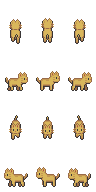
When working with a grid-based sprite sheet like cat_orange-32x48.png (3 columns × 4 rows), you need to target a specific row. To animate the walking cycle in row 2:
.sprite-cat-orange {
  width: 32px;
  height: 48px;
  background-image: url('cat_orange-32x48.png');
  background-size: 96px 192px; /* 3 frames × 32px wide, 4 rows × 48px tall */
  background-position: 0 -48px; /* Start at row 2 (0-indexed, so -48px) */
  animation: walk-horizontal 0.4s steps(3) infinite;
}

@keyframes walk-horizontal {
  from { background-position: 0 -48px; }
  to { background-position: -96px -48px; } /* Move across 3 frames */
}
We then need to add the CSS to our HTML:
Here, the background-position shifts horizontally across the three frames in row 2, while maintaining the vertical position at -48px (the second row).
25.4.3 Separate Image Files
Some sprite sets provide each frame as an individual file (e.g., ninja-run_00.png through ninja-run_11.png). While this format is easier to work with programmatically—you can simply swap image sources—it requires multiple HTTP requests and is generally less efficient for web delivery. Many free online tools (such as Stitches, TexturePacker, or Leshy SpriteSheet Tool) can automatically combine separate images into an optimized sprite sheet. This is the preferred approach when possible, as it reduces HTTP requests and improves performance.

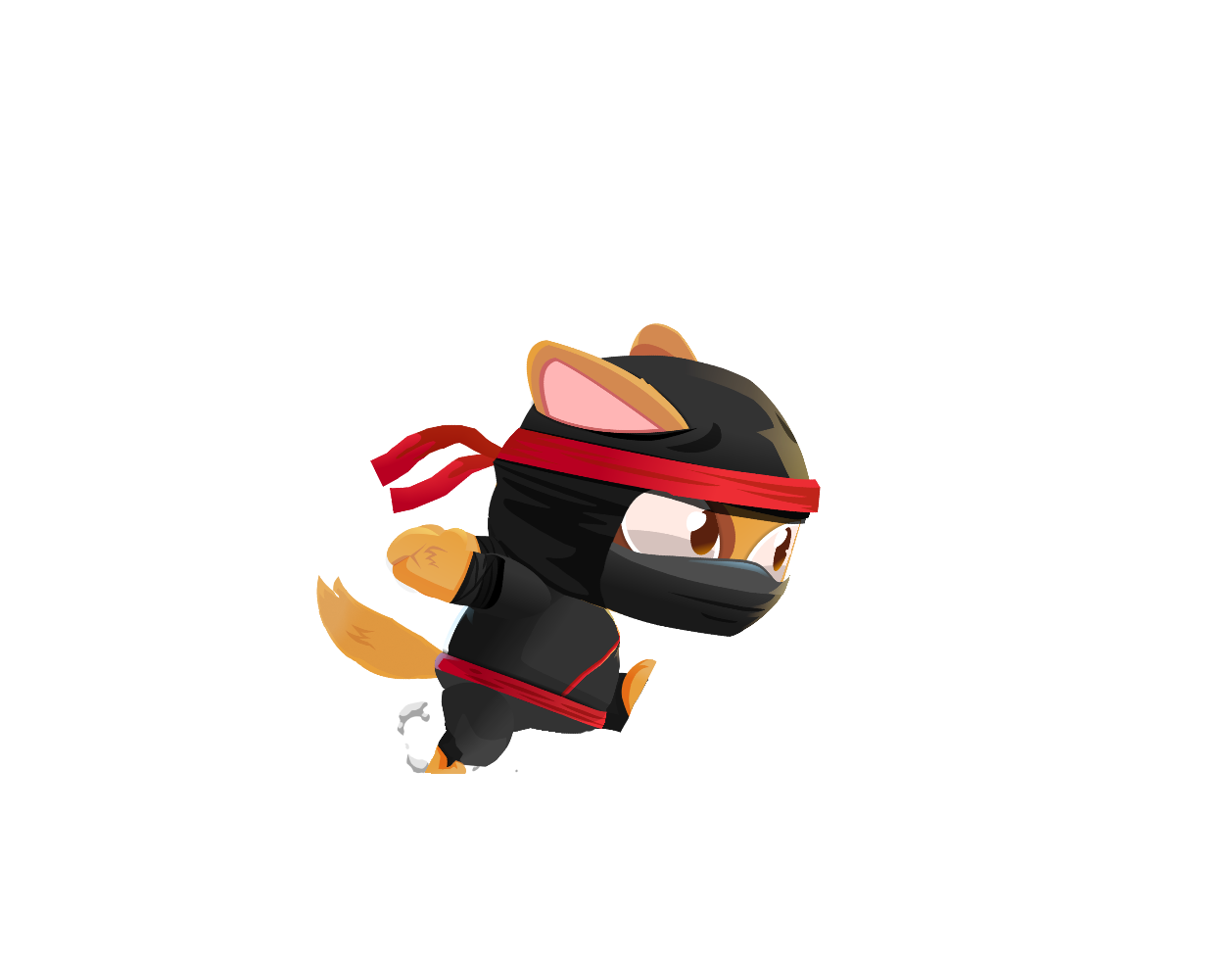
When frames are provided as individual files, you can animate them using CSS keyframes that swap the background image at each step. While this approach requires multiple HTTP requests and is less efficient than sprite sheets, it can be useful when you only have access to separate frame files.
Important: Because you are relying on many images, you’ll want to make sure you preload the images before you use this method. In fact, you may notice the image flicker in the demo below because the preloading is inconsistent.
.sprite-ninja {
  width: 128px;
  height: 128px;
  background-size: contain;
  background-repeat: no-repeat;
  background-image: url('ninja-run_00.png'); /* Default frame */
}

.sprite-ninja.running {
  animation: ninja-run 0.5s steps(12) infinite;
}

@keyframes ninja-run {
  0% { background-image: url('ninja-run_00.png'); }
  8.33% { background-image: url('ninja-run_01.png'); }
  16.66% { background-image: url('ninja-run_02.png'); }
  25% { background-image: url('ninja-run_03.png'); }
  33.33% { background-image: url('ninja-run_04.png'); }
  41.66% { background-image: url('ninja-run_05.png'); }
  50% { background-image: url('ninja-run_06.png'); }
  58.33% { background-image: url('ninja-run_07.png'); }
  66.66% { background-image: url('ninja-run_08.png'); }
  75% { background-image: url('ninja-run_09.png'); }
  83.33% { background-image: url('ninja-run_10.png'); }
  91.66% { background-image: url('ninja-run_11.png'); }
}
And the HTML:
The keyframe percentages are calculated by dividing 100% by the number of frames (100 ÷ 12 ≈ 8.33% per frame). The steps(12) timing function ensures the animation jumps between frames rather than smoothly transitioning.
25.4.4 Adding Sprite Animations to jsPsych
Adding animated sprites is as simple as adding the classes to our HTML stimulus. Here are a couple examples.
25.4.4.1 Example 1: Flappy Bird Flanker
 <!DOCTYPE html>
<html>
<head>
    <title>Gamification</title>
    <!-- jsPsych -->
    <script src="jspsych/jspsych.js"></script>
    <link href="jspsych/jspsych.css" rel="stylesheet" type="text/css" />

    <!-- jsPsych plugins -->
    <script src="jspsych/plugin-instructions.js"></script>
    <script src="jspsych/plugin-preload.js"></script>
    <script src="jspsych/plugin-html-keyboard-response.js"></script>
    <script src="jspsych/plugin-html-button-response.js"></script>

    <!-- custom CSS -->
    <link href="style.css" rel="stylesheet" type="text/css" />
</head>
<body>
  <div class="game-display">
    <div class="grid">
      <div class="top-left">top-left</div>
      <div class="top">top</div>
      <div class="top-right">top-right</div>

      <div class="left">left</div>
      <div id="jspsych-game-display" class="center">center</div>
      <div class="right">right</div>

      <div class="bottom-left">bottom-left</div>
      <div class="bottom">bottom</div>
      <div class="bottom-right">bottom-right</div>
    </div>
  </div>
  <!-- custom JS -->
  <script src="exp.js"></script>
</body>
</html>
// ============================================
// Initiate jsPsych
// ============================================

const jsPsych = initJsPsych(
                  {display_element: 'jspsych-game-display'}
                )

// ============================================
// Welcome
// ============================================

let welcome = {
  type: jsPsychHtmlKeyboardResponse,
  stimulus: "Welcome to the experiment! Press the space bar to begin.",
  choices: " "
}

// ============================================
// Flanker Experimental Block
// ============================================

// fixation
let exp_fixation = {
    type: jsPsychHtmlKeyboardResponse,
    stimulus: `<p style="font-size:48px">+</p>`,
    choices: "NO_KEYS",
    trial_duration: 1000,
    post_trial_gap: 250,
    data: {
      trial_part: "fixation"
    }
}

// stimulus
let exp_stimulus = {
    type: jsPsychHtmlKeyboardResponse,
    stimulus: function(){
        let target = jsPsych.evaluateTimelineVariable("target");
        let distractor = jsPsych.evaluateTimelineVariable("distractor");
        let distance = jsPsych.evaluateTimelineVariable("distance");

        // convert arrows to sprite classes
        let target_class
        let distractor_class

        if(target == "<"){
           target_class = "flappy-bird flip"
        } else {
           target_class = "flappy-bird"
        }

        if(distractor == "<"){
           distractor_class = "flappy-bird flip"
        } else {
           distractor_class = "flappy-bird"
        }

        let output = `<div style="display: flex;  justify-content: center;">
                        <div class="${distractor_class}"></div>
                        <div class="${distractor_class}"></div>
                        <div class="${target_class}" style="margin: 0 ${distance}px;"></div>
                        <div class="${distractor_class}"></div>
                        <div class="${distractor_class}"></div>
                      </div>`

        return output;
    },
    choices: ["a", "l"],
    post_trial_gap: 250,
    data: {
      trial_part: "stimulus"
    },
    on_finish: function(data){
        // store accuracy
        data.correct = jsPsych.pluginAPI.compareKeys(data.response, data.correct_response)
    }
}

// exp timeline
let exp_flanker = {
    timeline: [
        exp_fixation,
        exp_stimulus
    ],
    timeline_variables: [
        { target: "<", distractor: "<", distance: 0, congruency: "congruent", correct_response: "a" },
        { target: "<", distractor: "<", distance: 50, congruency: "congruent", correct_response: "a"  },
        { target: "<", distractor: ">", distance: 0, congruency: "incongruent", correct_response: "a"  },
        { target: "<", distractor: ">", distance: 50, congruency: "incongruent", correct_response: "a"  },
        { target: ">", distractor: "<", distance: 0, congruency: "incongruent", correct_response: "l"  },
        { target: ">", distractor: "<", distance: 50, congruency: "incongruent", correct_response: "l" },
        { target: ">", distractor: ">", distance: 0, congruency: "congruent", correct_response: "l" },
        { target: ">", distractor: ">", distance: 50, congruency: "congruent", correct_response: "l" }
    ],
    randomize_order: true,
    data: {
      phase: "flanker",
      target: jsPsych.timelineVariable("target"),
      distractor: jsPsych.timelineVariable("distractor"),
      congruency: jsPsych.timelineVariable("congruency"),
      correct_response: jsPsych.timelineVariable("correct_response")
    }
};


// ============================================
// Savd Data Trial
// ============================================

const saveData = {
  type: jsPsychHtmlKeyboardResponse,
  stimulus: `
    <div style="text-align: center;">
      <p>Experiment complete!</p>
      <p>Click the button below to save your data locally:</p>
      <button id="save-btn" style="padding: 10px 20px; font-size: 16px; cursor: pointer;">
        Click here to save the data locally
      </button>
    </div>
  `,
  choices: "NO_KEYS",
  trial_duration: null,
  on_load: function() {
    document.getElementById("save-btn").addEventListener("click", function() {
      jsPsych.data.get().localSave("csv", "faceInversion_data.csv");
    });
  },
  data: {
    phase: "save data trial"
  }
};

// ============================================
// Run jsPsych
// ============================================

jsPsych.run([
  welcome,
  exp_flanker,
  saveData
]);
body {
display: flex;
justify-content: center;
align-items: center;
min-height: 100vh;
margin: 0
}
.game-display {
margin: 0 auto;
width: 750px;
height: 400px;
}
.grid {
width: 100%;
height: 100%;
display: grid;
grid-template-columns: repeat(6, 1fr);
grid-template-rows: repeat(6, 1fr);
grid-template-areas:
"top-left top-left top top top-right top-right"
"left center center center center right"
"left center center center center right"
"left center center center center right"
"left center center center center right"
"bottom-left bottom bottom bottom bottom bottom-right";
}
/* Grid area assignments */
.top-left {
grid-area: top-left;
background: rgba(255, 102, 102, 0.4);
}
.top-right {
grid-area: top-right;
background: rgba(255, 204, 102, 0.4);
}
.top {
grid-area: top;
background: rgba(255, 255, 102, 0.4);
}
.center {
grid-area: center;
}
.left {
grid-area: left;
background: rgba(204, 102, 255, 0.4);
}
.right {
grid-area: right;
background: rgba(255, 102, 255, 0.4);
}
.bottom-left {
grid-area: bottom-left;
background: rgba(84, 255, 159, 0.4);
}
.bottom-right {
grid-area: bottom-right;
background: rgba(132, 112, 255, 0.4);
}
.bottom {
grid-area: bottom;
background: rgba(255, 102, 255, 0.4);
}
.flappy-bird {
width: 47.8px; /* 191.18 / 4 = scaled down 4x */
height: 37.5px; /* 150 / 4 = scaled down 4x */
background-image: url("images/animations/white_flappy.png");
background-repeat: no-repeat;
background-size: 812.5px 37.5px; /* 3250 / 4 and 150 / 4 */
animation: flap 0.5s steps(17) infinite;
}
.flappy-bird.flip {
transform: scaleX(-1);
}
@keyframes flap {
from { background-position: 0 0; }
to { background-position: -812.5px 0; }
}
25.4.4.2 Example 2: Go/No-Go Bomb
Here’s another example, where we swap out the sprites depending on whether they responded correctly or not. In this example, you have to press the space bar as quickly as possible, before the bomb explodes BUT if the fuse is blue you need to withhold your response. This is a classic ‘go’ / ‘no-go’ task.
If you don’t press the space bar in time, then the bomb explodes. If you do, then you get a little heart-eyes bomb. If you accidentally press the space when the fuse is blue, the bomb explodes.
 <!DOCTYPE html>
<html>
<head>
    <title>Gamification</title>
    <!-- jsPsych -->
    <script src="jspsych/jspsych.js"></script>
    <link href="jspsych/jspsych.css" rel="stylesheet" type="text/css" />

    <!-- jsPsych plugins -->
    <script src="jspsych/plugin-instructions.js"></script>
    <script src="jspsych/plugin-preload.js"></script>
    <script src="jspsych/plugin-html-keyboard-response.js"></script>
    <script src="jspsych/plugin-html-button-response.js"></script>

    <!-- custom CSS -->
    <link href="style.css" rel="stylesheet" type="text/css" />
</head>
<body>
  <div class="game-display">
    <div class="grid">
      <div class="top-left">top-left</div>
      <div class="top">top</div>
      <div class="top-right">top-right</div>

      <div class="left">left</div>
      <div id="jspsych-game-display" class="center">center</div>
      <div class="right">right</div>

      <div class="bottom-left">bottom-left</div>
      <div class="bottom">bottom</div>
      <div class="bottom-right">bottom-right</div>
    </div>
  </div>
  <!-- custom JS -->
  <script src="exp.js"></script>
</body>
</html>
// ============================================
// Initiate jsPsych
// ============================================

const jsPsych = initJsPsych(
                  {display_element: 'jspsych-game-display'}
                )

// ============================================
// Welcome
// ============================================

let welcome = {
  type: jsPsychHtmlKeyboardResponse,
  stimulus: "Welcome to the experiment! Press the space bar to begin.",
  choices: " "
}

// ============================================
// Bomb Experimental Block
// ============================================

// stimulus
let exp_stimulus = {
    type: jsPsychHtmlKeyboardResponse,
    stimulus: function(){
        let type = jsPsych.evaluateTimelineVariable("trial_type")
        if(type == "go"){
          return `<div class="bomb-sprite bomb-nontarget"></div>`
        } else {
          return `<div class="bomb-sprite bomb-target"></div>`
        }
    },
    choices: [" "],
    trial_duration: 600,
    data: {
      trial_part: "stimulus"
    }
}

// feedback
let exp_feedback = {
    type: jsPsychHtmlKeyboardResponse,
    stimulus: function(){
        let last_trial = jsPsych.data.get().last(1).values()[0]

        if(jsPsych.evaluateTimelineVariable("trial_type") == "go"){
           if(last_trial.response){
              return `<div class="bomb-sprite bomb-defuse"></div>`
           } else {
              return `<div class="bomb-sprite bomb-explode"></div>`
           }
        } else {
          if(last_trial.response){
              return `<div class="bomb-sprite bomb-explode"></div>`
           } else {
              return `<div class="bomb-sprite bomb-defuse"></div>`
           }
        }

    },
    choices: ["NO_KEYS"],
    trial_duration: 1000,
    data: {
      trial_part: "feedback"
    }
}

// exp timeline
let exp_bomb = {
    timeline: [
        exp_stimulus,
        exp_feedback
    ],
    timeline_variables: [
      {trial_type: "go"},
      {trial_type: "nogo"}
    ],
    sample: {
        type: "custom",
        fn: function(t){
          console.log(t)

          let output = [];

          for(let i = 0; i < 8; i++){
             output.push(t[0]);
          }

          output.push(t[1])

          output = jsPsych.randomization.shuffle(output)

          return output;
        }
    },
    repetitions: 2,
    data: {
      phase: "bomb",
      trial_type: jsPsych.timelineVariable("trial_type")
    }
};


// ============================================
// Savd Data Trial
// ============================================

const saveData = {
  type: jsPsychHtmlKeyboardResponse,
  stimulus: `
    <div style="text-align: center;">
      <p>Experiment complete!</p>
      <p>Click the button below to save your data locally:</p>
      <button id="save-btn" style="padding: 10px 20px; font-size: 16px; cursor: pointer;">
        Click here to save the data locally
      </button>
    </div>
  `,
  choices: "NO_KEYS",
  trial_duration: null,
  on_load: function() {
    document.getElementById("save-btn").addEventListener("click", function() {
      jsPsych.data.get().localSave("csv", "faceInversion_data.csv");
    });
  },
  data: {
    phase: "save data trial"
  }
};

// ============================================
// Run jsPsych
// ============================================

jsPsych.run([
  welcome,
  exp_bomb,
  saveData
]);
body {
display: flex;
justify-content: center;
align-items: center;
min-height: 100vh;
margin: 0
}
.game-display {
margin: 0 auto;
width: 750px;
height: 400px;
}
.grid {
width: 100%;
height: 100%;
display: grid;
grid-template-columns: repeat(6, 1fr);
grid-template-rows: repeat(6, 1fr);
grid-template-areas:
"top-left top-left top top top-right top-right"
"left center center center center right"
"left center center center center right"
"left center center center center right"
"left center center center center right"
"bottom-left bottom bottom bottom bottom bottom-right";
}
/* Grid area assignments */
.top-left {
grid-area: top-left;
background: rgba(255, 102, 102, 0.4);
}
.top-right {
grid-area: top-right;
background: rgba(255, 204, 102, 0.4);
}
.top {
grid-area: top;
background: rgba(255, 255, 102, 0.4);
}
.center {
grid-area: center;
}
.left {
grid-area: left;
background: rgba(204, 102, 255, 0.4);
}
.right {
grid-area: right;
background: rgba(255, 102, 255, 0.4);
}
.bottom-left {
grid-area: bottom-left;
background: rgba(84, 255, 159, 0.4);
}
.bottom-right {
grid-area: bottom-right;
background: rgba(132, 112, 255, 0.4);
}
.bottom {
grid-area: bottom;
background: rgba(255, 102, 255, 0.4);
}
/* Base sprite styling */
.bomb-sprite {
width: 100px; /* Single frame width */
height: 100px;
background-repeat: no-repeat;
background-size: auto 100px; /* Scale height to 100px, width auto-scales */
}
/* Bomb Target Animation */
.bomb-target {
background-image: url("images/animations/bomb-target.png");
animation: bomb-target-anim 0.6s steps(9) forwards;
}
@keyframes bomb-target-anim {
from { background-position: 0 0; }
to { background-position: -900px 0; }
}
/* Bomb Non-Target Animation */
.bomb-nontarget {
background-image: url("images/animations/bomb-nontarget.png");
animation: bomb-nontarget-anim 0.6s steps(9) forwards;
}
@keyframes bomb-nontarget-anim {
from { background-position: 0 0; }
to { background-position: -900px 0; }
}
/* Bomb Defuse Animation (infinite loop) */
.bomb-defuse {
background-image: url("images/animations/bomb-defuse.png");
animation: bomb-defuse-anim 0.5s steps(5) infinite;
}
@keyframes bomb-defuse-anim {
from { background-position: 0 0; }
to { background-position: -500px 0; }
}
/* Bomb Explode Animation (ends on empty frame) */
.bomb-explode {
background-image: url("images/animations/bomb-explode.png");
animation: bomb-explode-anim 0.6s steps(6) forwards;
}
@keyframes bomb-explode-anim {
from { background-position: 0 0; }
to { background-position: -600px 0; }
}
25.5 Animating Backgrounds
Background animations can enhance immersion and create a sense of movement in your experiments. Two common techniques are scrolling backgrounds and parallax effects, both achievable with CSS.
25.5.1 Scrolling Backgrounds
To create a continuously scrolling background (useful for endless runner-style tasks or creating motion cues), animate the background-position:
.scrolling-background {
  width: 100%;
  height: 300px;
  background-image: url('background-pattern.png');
  background-repeat: repeat-x;
  animation: scroll-bg 10s linear infinite;
}

@keyframes scroll-bg {
  from { background-position: 0 0; }
  to { background-position: -1000px 0; }
}
The key is using background-repeat: repeat-x so the image tiles horizontally, creating seamless scrolling. The animation duration (10s) controls the scroll speed—longer durations create slower movement.
You can control the scroll direction by adjusting the background-position values, which specify the x and y coordinates:
/* Vertical scrolling */
@keyframes scroll-vertical {
  from { background-position: 0 0; }
  to { background-position: 0 -1000px; }
}
To reverse the direction (right to left or bottom to top), add the reverse keyword:
25.5.2 Parallax Effects
Parallax creates depth by moving multiple background layers at different speeds, simulating the way distant objects appear to move slower than nearby objects. Parallax backgrounds consist of multiple images that combine to create distinct layers:



The images are stacked together by placing them on separate divs. Parallax creates depth by moving multiple background layers at different speeds, like this:
This requires multiple elements stacked on top of each other with multiple HTML divs and specific CSS styling that would layer them on top of each other:
<div class="parallax-container">
  <div class="parallax-layer layer-1"></div>
  <div class="parallax-layer layer-2"></div>
  <div class="parallax-layer layer-3"></div>
  <div class="parallax-layer layer-4"></div>
  <div class="parallax-layer layer-5"></div>
</div>
.parallax-container {
position: relative;
max-width: 600px;
height: 300px;
overflow: hidden;
}
.parallax-layer {
position: absolute;
width: 100%;
height: 100%;
background-repeat: repeat-x;
background-size: cover;
}
.layer-1 {
background-image: url('parallax-1.png');
animation: scroll-layer1 40s linear infinite;
}
.layer-2 {
background-image: url('parallax-2.png');
animation: scroll-layer2 30s linear infinite;
}
.layer-3 {
background-image: url('parallax-3.png');
animation: scroll-layer3 20s linear infinite;
}
.layer-4 {
background-image: url('parallax-4.png');
animation: scroll-layer4 12s linear infinite;
}
.layer-5 {
background-image: url('parallax-5.png');
animation: scroll-layer5 8s linear infinite;
}
.content {
position: relative;
z-index: 10;
}
@keyframes scroll-layer1 {
from { background-position: 0 0; }
to { background-position: -510px 0; }
}
@keyframes scroll-layer2 {
from { background-position: 0 0; }
to { background-position: -510px 0; }
}
@keyframes scroll-layer3 {
from { background-position: 0 0; }
to { background-position: -510px 0; }
}
@keyframes scroll-layer4 {
from { background-position: 0 0; }
to { background-position: -1020px 0; }
}
@keyframes scroll-layer5 {
from { background-position: 0 0; }
to { background-position: -1020px 0; }
}The back layer (layer-1) moves slowest (40s), while each successive layer moves progressively faster, with the front layer (layer-5) moving fastest (8s). This differential speed creates the illusion of depth, as closer objects appear to move faster than distant ones—just as they do in real-world perception.
25.5.3 Scaling Background Images
When working with animated backgrounds, especially parallax effects, image scaling can cause visible jumps or stutters at loop points. Understanding why this happens and how to fix it is crucial for smooth animations.
When you use background-size: auto 100% to make a background image fill the container’s height, CSS scales the image proportionally. If your image’s original dimensions don’t match the container’s aspect ratio, the displayed width will differ from the original width.
For example, consider an image that is 272px wide × 160px tall displayed in a container that is 300px tall:
Scaling factor: 300 ÷ 160 = 1.875
Displayed width: 272 × 1.875 = 510px
If you animate the background position by -272px (the original width), you’re only moving through about 53% of the displayed image before the animation loops. This creates a visible jump as the background resets to its starting position.
While scaling affects both simple scrolling backgrounds and parallax effects, the issue is far more apparent with parallax because the layers move at different speeds, making the ‘jump’ at one layer more obvious. Simple scrolling backgrounds with random patterns (like star fields) are more forgiving of small misalignments, making the scaling issue less noticeable.
The most straightforward solution is to calculate the scaled width and use it in your animation: Scaled width = Original width × (Container height ÷ Original height)
For our example: Scaled width = 272 × (300 ÷ 160) = 510px
Then update your keyframe:
25.5.4 Adding Scrolling Backgrounds to jsPsych
To add a simple scrolling background to our jsPsych experiment, we will have to use some JavaScript to add/remove the space-scroll CSS class to and from the jspsych-game-display div. We’ll make use of the on_timeline_start and on_timeline_finish functions.
25.5.4.1 Example 1: Simple Scrolling Background
 <!DOCTYPE html>
<html>
<head>
    <title>Gamification</title>
    <!-- jsPsych -->
    <script src="jspsych/jspsych.js"></script>
    <link href="jspsych/jspsych.css" rel="stylesheet" type="text/css" />

    <!-- jsPsych plugins -->
    <script src="jspsych/plugin-instructions.js"></script>
    <script src="jspsych/plugin-preload.js"></script>
    <script src="jspsych/plugin-html-keyboard-response.js"></script>
    <script src="jspsych/plugin-html-button-response.js"></script>

    <!-- custom CSS -->
    <link href="style.css" rel="stylesheet" type="text/css" />
</head>
<body>
  <div class="game-display">
    <div class="grid">
      <div class="top-left">top-left</div>
      <div class="top">top</div>
      <div class="top-right">top-right</div>

      <div class="left">left</div>
      <div id="jspsych-game-display" class="center">center</div>
      <div class="right">right</div>

      <div class="bottom-left">bottom-left</div>
      <div class="bottom">bottom</div>
      <div class="bottom-right">bottom-right</div>
    </div>
  </div>
  <!-- custom JS -->
  <script src="exp.js"></script>
</body>
</html>
// ============================================
// Initiate jsPsych
// ============================================

const jsPsych = initJsPsych(
                  {display_element: 'jspsych-game-display'}
                )

// ============================================
// Welcome
// ============================================

let welcome = {
  type: jsPsychHtmlKeyboardResponse,
  stimulus: "Welcome to the experiment! Press the space bar to begin.",
  choices: " "
}

// ============================================
// Flanker Experimental Block
// ============================================

// fixation
let exp_fixation = {
    type: jsPsychHtmlKeyboardResponse,
    stimulus: `<p style="font-size:48px">+</p>`,
    choices: "NO_KEYS",
    post_trial_gap: 250,
    trial_duration: 1000,
    data: {
      trial_part: "fixation"
    }
}

// stimulus
let exp_stimulus = {
    type: jsPsychHtmlKeyboardResponse,
    stimulus: function(){
        let target = jsPsych.evaluateTimelineVariable("target");
        let distractor = jsPsych.evaluateTimelineVariable("distractor");
        let distance = jsPsych.evaluateTimelineVariable("distance");

        // Create HTML with custom spacing
        let output = `
            <div style="font-size: 100px; font-family: monospace;">
              ${distractor}${distractor}<span style="margin: 0 ${distance}px;">${target}</span>${distractor}${distractor}
            </div>`;

        return output;
    },
    choices: ["a", "l"],
    trial_duration: 1000,
    post_trial_gap: 250,
    data: {
      trial_part: "stimulus"
    },
    on_finish: function(data){
        // store accuracy
        data.correct = jsPsych.pluginAPI.compareKeys(data.response, data.correct_response)
    }
}

// exp timeline
let exp_flanker = {
    timeline: [
        exp_fixation,
        exp_stimulus
    ],
    timeline_variables: [
        { target: "<", distractor: "<", distance: 0, congruency: "congruent", correct_response: "a" },
        { target: "<", distractor: "<", distance: 50, congruency: "congruent", correct_response: "a"  },
        { target: "<", distractor: ">", distance: 0, congruency: "incongruent", correct_response: "a"  },
        { target: "<", distractor: ">", distance: 50, congruency: "incongruent", correct_response: "a"  },
        { target: ">", distractor: "<", distance: 0, congruency: "incongruent", correct_response: "l"  },
        { target: ">", distractor: "<", distance: 50, congruency: "incongruent", correct_response: "l" },
        { target: ">", distractor: ">", distance: 0, congruency: "congruent", correct_response: "l" },
        { target: ">", distractor: ">", distance: 50, congruency: "congruent", correct_response: "l" }
    ],
    randomize_order: true,
    data: {
      phase: "flanker",
      target: jsPsych.timelineVariable("target"),
      distractor: jsPsych.timelineVariable("distractor"),
      congruency: jsPsych.timelineVariable("congruency"),
      correct_response: jsPsych.timelineVariable("correct_response")
    },
    on_timeline_start: function(){
        // get the game display
        let display = document.querySelector("#jspsych-game-display")
        // add the scrolling space background
        display.classList.add("space-scroll");
    },
    on_timeline_finish: function(){
        // get the game display
        let display = document.querySelector("#jspsych-game-display")
        // remove the scrolling space background
        display.classList.remove("space-scroll");
    }
};


// ============================================
// Savd Data Trial
// ============================================

const saveData = {
  type: jsPsychHtmlKeyboardResponse,
  stimulus: `
    <div style="text-align: center;">
      <p>Experiment complete!</p>
      <p>Click the button below to save your data locally:</p>
      <button id="save-btn" style="padding: 10px 20px; font-size: 16px; cursor: pointer;">
        Click here to save the data locally
      </button>
    </div>
  `,
  choices: "NO_KEYS",
  trial_duration: null,
  on_load: function() {
    document.getElementById("save-btn").addEventListener("click", function() {
      jsPsych.data.get().localSave("csv", "faceInversion_data.csv");
    });
  },
  data: {
    phase: "save data trial"
  }
};

// ============================================
// Run jsPsych
// ============================================

jsPsych.run([
  welcome,
  exp_flanker,
  saveData
]);
body {
display: flex;
justify-content: center;
align-items: center;
min-height: 100vh;
margin: 0
}
.game-display {
margin: 0 auto;
width: 750px;
height: 400px;
}
.grid {
width: 100%;
height: 100%;
display: grid;
grid-template-columns: repeat(6, 1fr);
grid-template-rows: repeat(8, 1fr);
grid-template-areas:
"top-left top-left top top top-right top-right"
"left center center center center right"
"left center center center center right"
"left center center center center right"
"left center center center center right"
"left center center center center right"
"left center center center center right"
"bottom-left bottom bottom bottom bottom bottom-right";
}
/* Grid area assignments */
.top-left { grid-area: top-left; }
.top-right { grid-area: top-right; }
.top { grid-area: top; }
.center { grid-area: center; }
.left { grid-area: left; }
.right { grid-area: right; }
.bottom-left { grid-area: bottom-left; }
.bottom-right { grid-area: bottom-right; }
.bottom { grid-area: bottom; }
.grid {
width: 100%;
height: 100%;
display: grid;
grid-template-columns: repeat(6, 1fr);
grid-template-rows: repeat(6, 1fr);
grid-template-areas:
"top-left top-left top top top-right top-right"
"left center center center center right"
"left center center center center right"
"left center center center center right"
"left center center center center right"
"bottom-left bottom bottom bottom bottom bottom-right";
}
/* Grid area assignments */
.top-left {
grid-area: top-left;
background: rgba(255, 102, 102, 0.4);
}
.top-right {
grid-area: top-right;
background: rgba(255, 204, 102, 0.4);
}
.top {
grid-area: top;
background: rgba(255, 255, 102, 0.4);
}
.center {
grid-area: center;
}
.left {
grid-area: left;
background: rgba(204, 102, 255, 0.4);
}
.right {
grid-area: right;
background: rgba(255, 102, 255, 0.4);
}
.bottom-left {
grid-area: bottom-left;
background: rgba(84, 255, 159, 0.4);
}
.bottom-right {
grid-area: bottom-right;
background: rgba(132, 112, 255, 0.4);
}
.bottom {
grid-area: bottom;
background: rgba(255, 102, 255, 0.4);
}
.space-scroll {
width: 100%;
height: 100%;
background-image: url("images/animations/space_background.png");
background-repeat: repeat;
background-size: 1024px 1024px;
animation: scroll-horizontal 20s linear infinite;
}
@keyframes scroll-horizontal {
from { background-position: 0 0; }
to { background-position: -1024px 0; }
}
25.5.4.2 Example 1: Parallax Background
To add a parallax background to your center display area, you need to layer the background elements behind your content. This requires specific HTML and CSS positioning:
 <!DOCTYPE html>
<html>
<head>
    <title>Gamification</title>
    <!-- jsPsych -->
    <script src="jspsych/jspsych.js"></script>
    <link href="jspsych/jspsych.css" rel="stylesheet" type="text/css" />

    <!-- jsPsych plugins -->
    <script src="jspsych/plugin-instructions.js"></script>
    <script src="jspsych/plugin-preload.js"></script>
    <script src="jspsych/plugin-html-keyboard-response.js"></script>
    <script src="jspsych/plugin-html-button-response.js"></script>

    <!-- custom CSS -->
    <link href="style.css" rel="stylesheet" type="text/css" />
</head>
<body>
<div class="game-display">
  <div class="grid">
    <div class="top-left">top-left</div>
    <div class="top">top</div>
    <div class="top-right">top-right</div>

    <div class="left">left</div>
    <div class="center">
      <div class="background-container">
        <div id="bg-1" class="parallax-layer"></div>
        <div id="bg-2" class="parallax-layer"></div>
        <div id="bg-3" class="parallax-layer"></div>
        <div id="bg-4" class="parallax-layer"></div>
        <div id="bg-5" class="parallax-layer"></div>
      </div>
      <div id="jspsych-game-display" class="center-content"></div>
    </div>
    <div class="right">right</div>

    <div class="bottom-left">bottom-left</div>
    <div class="bottom">bottom</div>
    <div class="bottom-right">bottom-right</div>
  </div>
</div>
  <!-- custom JS -->
  <script src="exp.js"></script>
</body>
</html>
// ============================================
// Initiate jsPsych
// ============================================

const jsPsych = initJsPsych(
                  {display_element: 'jspsych-game-display'}
                )

// ============================================
// Welcome
// ============================================

let welcome = {
  type: jsPsychHtmlKeyboardResponse,
  stimulus: "Welcome to the experiment! Press the space bar to begin.",
  choices: " "
}

// ============================================
// Flanker Experimental Block
// ============================================

// fixation
let exp_fixation = {
    type: jsPsychHtmlKeyboardResponse,
    stimulus: `<p style="font-size:48px">+</p>`,
    choices: "NO_KEYS",
    post_trial_gap: 250,
    trial_duration: 1000,
    data: {
      trial_part: "fixation"
    }
}

// stimulus
let exp_stimulus = {
    type: jsPsychHtmlKeyboardResponse,
    stimulus: function(){
        let target = jsPsych.evaluateTimelineVariable("target");
        let distractor = jsPsych.evaluateTimelineVariable("distractor");
        let distance = jsPsych.evaluateTimelineVariable("distance");

        // Create HTML with custom spacing
        let output = `
            <div style="font-size: 100px; font-family: monospace;">
              ${distractor}${distractor}<span style="margin: 0 ${distance}px;">${target}</span>${distractor}${distractor}
            </div>`;

        return output;
    },
    choices: ["a", "l"],
    post_trial_gap: 250,
    data: {
      trial_part: "stimulus"
    },
    on_finish: function(data){
        // store accuracy
        data.correct = jsPsych.pluginAPI.compareKeys(data.response, data.correct_response)
    }
}

// exp timeline
let exp_flanker = {
    timeline: [
        exp_fixation,
        exp_stimulus
    ],
    timeline_variables: [
        { target: "<", distractor: "<", distance: 0, congruency: "congruent", correct_response: "a" },
        { target: "<", distractor: "<", distance: 50, congruency: "congruent", correct_response: "a"  },
        { target: "<", distractor: ">", distance: 0, congruency: "incongruent", correct_response: "a"  },
        { target: "<", distractor: ">", distance: 50, congruency: "incongruent", correct_response: "a"  },
        { target: ">", distractor: "<", distance: 0, congruency: "incongruent", correct_response: "l"  },
        { target: ">", distractor: "<", distance: 50, congruency: "incongruent", correct_response: "l" },
        { target: ">", distractor: ">", distance: 0, congruency: "congruent", correct_response: "l" },
        { target: ">", distractor: ">", distance: 50, congruency: "congruent", correct_response: "l" }
    ],
    randomize_order: true,
    data: {
      phase: "flanker",
      target: jsPsych.timelineVariable("target"),
      distractor: jsPsych.timelineVariable("distractor"),
      congruency: jsPsych.timelineVariable("congruency"),
      correct_response: jsPsych.timelineVariable("correct_response")
    },
    on_timeline_start: function() {
      // use a loop to add all five layers
      for (let i = 1; i <= 5; i++) {
        document.querySelector("#bg-" + i).classList.add("layer-" + i);
      }
    },
    on_timeline_finish: function() {
      // use a loop to remove all five layers
      for (let i = 1; i <= 5; i++) {
        document.querySelector("#bg-" + i).classList.remove("layer-" + i);
      }
    }
};


// ============================================
// Savd Data Trial
// ============================================

const saveData = {
  type: jsPsychHtmlKeyboardResponse,
  stimulus: `
    <div style="text-align: center;">
      <p>Experiment complete!</p>
      <p>Click the button below to save your data locally:</p>
      <button id="save-btn" style="padding: 10px 20px; font-size: 16px; cursor: pointer;">
        Click here to save the data locally
      </button>
    </div>
  `,
  choices: "NO_KEYS",
  trial_duration: null,
  on_load: function() {
    document.getElementById("save-btn").addEventListener("click", function() {
      jsPsych.data.get().localSave("csv", "faceInversion_data.csv");
    });
  },
  data: {
    phase: "save data trial"
  }
};

// ============================================
// Run jsPsych
// ============================================

jsPsych.run([
  welcome,
  exp_flanker,
  saveData
]);
body {
display: flex;
justify-content: center;
align-items: center;
min-height: 100vh;
margin: 0
}
.game-display {
margin: 0 auto;
width: 750px;
height: 400px;
}
.grid {
width: 100%;
height: 100%;
display: grid;
grid-template-columns: repeat(6, 1fr);
grid-template-rows: repeat(8, 1fr);
grid-template-areas:
"top-left top-left top top top-right top-right"
"left center center center center right"
"left center center center center right"
"left center center center center right"
"left center center center center right"
"left center center center center right"
"left center center center center right"
"bottom-left bottom bottom bottom bottom bottom-right";
}
/* Grid area assignments */
.top-left {
grid-area: top-left;
background: rgba(255, 102, 102, 0.4);
}
.top-right {
grid-area: top-right;
background: rgba(255, 204, 102, 0.4);
}
.top {
grid-area: top;
background: rgba(255, 255, 102, 0.4);
}
.center {
grid-area: center;
}
.left {
grid-area: left;
background: rgba(204, 102, 255, 0.4);
}
.right {
grid-area: right;
background: rgba(255, 102, 255, 0.4);
}
.bottom-left {
grid-area: bottom-left;
background: rgba(84, 255, 159, 0.4);
}
.bottom-right {
grid-area: bottom-right;
background: rgba(132, 112, 255, 0.4);
}
.bottom {
grid-area: bottom;
background: rgba(255, 102, 255, 0.4);
}
.center {
display: flex;
justify-content: center;
align-items: center;
position: relative;
overflow: hidden;
}
.background-container {
position: absolute;
width: 100%;
height: 100%;
top: 0;
left: 0;
}
.parallax-layer {
position: absolute;
width: 100%;
height: 100%;
background-repeat: repeat-x;
background-size: auto 100%;
}
.layer-1 {
background-image: url("images/animations/parallax-1.png");
animation: scroll-layer1 20s linear infinite;
}
.layer-2 {
background-image: url("images/animations/parallax-2.png");
animation: scroll-layer2 15s linear infinite;
}
.layer-3 {
background-image: url("images/animations/parallax-3.png");
animation: scroll-layer3 10s linear infinite;
}
.layer-4 {
background-image: url("images/animations/parallax-4.png");
animation: scroll-layer4 6s linear infinite;
}
.layer-5 {
background-image: url("images/animations/parallax-5.png");
animation: scroll-layer5 4s linear infinite;
}
// scaled image width = 272 * (300 / 160) = 510
@keyframes scroll-layer1 {
from { background-position: 0 0; }
to { background-position: -510px 0; }
}
@keyframes scroll-layer2 {
from { background-position: 0 0; }
to { background-position: -510px 0; }
}
// scaled image width = 544 * (300 / 160) = 510
@keyframes scroll-layer3 {
from { background-position: 0 0; }
to { background-position: -1020px 0; }
}
@keyframes scroll-layer4 {
from { background-position: 0 0; }
to { background-position: -1020px 0; }
}
@keyframes scroll-layer5 {
from { background-position: 0 0; }
to { background-position: -1020px 0; }
}
.center-content {
position: relative;
z-index: 10;
height:100%;
width:100%;
}
To add the parallax, we structured our center HTML to have two layers: the parallax background divs (layered) behind the jspsych-gamed-display div. To add a parallax background to your center display area, you need to layer the background elements behind your content. This requires specific CSS positioning:
.center {
  position: relative;
  overflow: hidden;
  display: flex;
  justify-content: center;
  align-items: center;
}
The .center div needs:
position: relative- Creates a positioning context for the absolutely positioned background layersoverflow: hidden- Prevents the scrolling backgrounds from extending beyond the center areadisplay: flexwithjustify-content: centerandalign-items: center- Centers your experiment content within the display area
.background-container {
  position: absolute;
  width: 100%;
  height: 100%;
  top: 0;
  left: 0;
}

.parallax-layer {
  position: absolute;
  width: 100%;
  height: 100%;
  background-repeat: repeat-x;
  background-size: auto 100%;
}
The .background-container and .parallax-layer elements use:
position: absolute- Removes them from the normal document flow and positions them relative to the.centerdivwidth: 100%andheight: 100%- Makes them fill the entire center areatop: 0andleft: 0- Positions them at the top-left corner of the center area
The .center-content wrapper needs:
position: relative- Creates a new stacking contextz-index: 10- Ensures your experiment content appears above the background layers (which have the defaultz-index: 0)
This layering structure allows the parallax backgrounds to scroll behind your experiment stimuli while keeping everything contained within the center grid area.
25.6 Sound Effects and Music
Audio feedback is a powerful gamification element that can enhance participant engagement and provide immediate reinforcement during psychological experiments. In this section, we’ll explore how to incorporate sounds and music into your jsPsych experiments, starting with the fundamentals of HTML5 audio elements and JavaScript control.
25.6.1 Creating an Audio Element
In web development, an audio element is a special object that represents a sound file. Think of it like a virtual audio player that you can control with code. Just as you might press play, pause, or adjust the volume on a physical music player, you can do the same thing programmatically with an audio element.
The simplest way to create an audio element is using the Audio() constructor:
Think of this like creating a new music player and loading a specific song into it. The variable correctSound is now your remote control for that player.
In a typical experiment, you’ll likely need several different sounds. Here’s how to organize them:
// Create separate audio elements for different feedback types
const correctSound = new Audio('sounds/correct.mp3');
const incorrectSound = new Audio('sounds/incorrect.mp3');
const neutralSound = new Audio('sounds/neutral.mp3');
const backgroundMusic = new Audio('sounds/background.mp3');
Important concept: Each variable holds a separate audio element. This means you can play correctSound and backgroundMusic at the same time, because they’re independent players.
25.6.2 Audio Properties
Once you’ve created an audio element, you can configure how it behaves. These are called “properties.”
.volume: The volume property controls how loud the audio plays.
const correctSound = new Audio('sounds/correct.mp3');

// Set volume (must be between 0.0 and 1.0)
correctSound.volume = 0.5; // 50% volume- 0.0 = completely silent (muted)
- 0.5 = half volume (50%)
- 1.0 = maximum volume (100%)
- You cannot go above 1.0 or below 0.0
.loop: The loop property determines whether audio repeats automatically.
const backgroundMusic = new Audio('sounds/background.mp3');

// Make the audio loop continuously
backgroundMusic.loop = true;true= the audio will restart automatically when it finishesfalse= the audio will play once and stop (this is the default)
.playbackRate: The playbackRate property controls how fast the audio plays.
const sound = new Audio('sounds/beep.mp3');

// Normal speed
sound.playbackRate = 1.0;

// Play faster (sounds higher pitched)
sound.playbackRate = 1.5;  // 50% faster

// Play slower (sounds lower pitched)
sound.playbackRate = 0.5; // Half speed- 1.0 = normal speed
- 2.0 = twice as fast
- 0.5 = half speed
- Values must be positive (greater than 0)
You typically set multiple properties when creating an audio element:
// Create and configure background music
const backgroundMusic = new Audio('sounds/background.mp3');
backgroundMusic.volume = 0.3;      // Quiet background music
backgroundMusic.loop = true;       // Keep playing
backgroundMusic.playbackRate = 1.0; // Normal speed

// Create and configure feedback sound
const correctSound = new Audio('sounds/correct.mp3');
correctSound.volume = 0.7;         // Louder than background
correctSound.loop = false; // Play once only.currentTime: Sets the time to begin playing in the audio file.
// Jump to different positions in the audio
sound.currentTime = 0;    // Beginning
sound.currentTime = 5;    // 5 seconds in
sound.currentTime = 10.5; // 10.5 seconds incurrentTimeis a property that represents the current playback position in seconds- Setting it to 0 moves the playback position back to the beginning
- You can set it to any value between 0 and the audio’s duration
.paused: Tells you whether the current file is paused (true = paused / false = playing)
const backgroundMusic = new Audio('sounds/background.mp3');

if (backgroundMusic.paused) {
  // if true
  console.log('Music is paused');
} else {
  // if false
  console.log('Music is playing');
}.duration: Tells you the duration of the sound file in seconds
25.6.3 Controlling Audio Playback
Now that we know how to create and configure audio elements, let’s learn how to control them.
.play(): To play an audio file, use the .play() method.
What happens when you call play():
- The browser starts loading the audio file (if it hasn’t already)
- As soon as enough of the file is loaded, playback begins
- The sound plays from the current position (usually the beginning)
.pause(): To pause audio, use the .pause() method:
const backgroundMusic = new Audio('sounds/background.mp3');

// Start playing
backgroundMusic.play();

// Pause the music (can be resumed later)
backgroundMusic.pause();
Understanding pause vs. stop:
.pause()pauses the audio at its current position- There is no built-in “stop” method
- When you pause, the audio remembers where it was
**Stopping and Resetting Audio*
To truly “stop” audio and reset it to the beginning, you need to pause AND reset the position:
25.6.4 Adding Audio Elements to jsPsych
Now that we understand how audio elements work, we can use them to add sounds and music to our gamified jsPsych experiment. Remember that these sounds will be ‘decorative’ and not functional. If we want to present audio stimuli for participants to respond to, we should be using the appropriate plugin and allowing jsPsych to handle the presentation.
In our gamified experiments however, we just want to add flourishes that help it feel more like a game. In this case, we’re simply going to use the audio element and start/stop audio files in the appropriate places.
25.6.4.1 Example 1: Background Music
Background music is probably the simplest, since it’s a long audio file that plays throughout the task. In this example, I’m loading two different background music files. The first is going to be triggered to play when the instructions screen is displayed. I used on_start and on_finish functions to trigger the .play() and .pause().
For the second, I want it to play throughout all the flanker trials. So in this case, I’m going to use the on_timeline_start and on_timeline_finish functions.
Important Note: The browser will not allow audio to play without the user interacting with the page first. That means that I cannot start playing music automatically on the ‘welcome’ screen. After the user has clicked a button/key to continue, then I can play audio.
 <!DOCTYPE html>
<html>
<head>
    <title>Gamification</title>
    <!-- jsPsych -->
    <script src="jspsych/jspsych.js"></script>
    <link href="jspsych/jspsych.css" rel="stylesheet" type="text/css" />

    <!-- jsPsych plugins -->
    <script src="jspsych/plugin-instructions.js"></script>
    <script src="jspsych/plugin-preload.js"></script>
    <script src="jspsych/plugin-html-keyboard-response.js"></script>
    <script src="jspsych/plugin-html-button-response.js"></script>

    <!-- custom CSS -->
    <link href="style.css" rel="stylesheet" type="text/css" />
</head>
<body>
<div class="game-display">
  <div class="grid">
    <div class="top-left"></div>
    <div class="top"></div>
    <div class="top-right" id="score-container">
      <p> SCORE: <span id="score-display">0</span> </p>
    </div>

    <div class="left"></div>
    <div id="jspsych-game-display" class="center"></div>
    <div class="right"></div>

    <div class="bottom-left"></div>
    <div class="bottom"></div>
    <div class="bottom-right"></div>
  </div>
</div>
  <!-- custom JS -->
  <script src="exp.js"></script>
</body>
</html>
// ============================================
// Initiate jsPsych
// ============================================

const jsPsych = initJsPsych(
                  {display_element: 'jspsych-game-display'}
                )

// ============================================
// Setup Audio
// ============================================

let bg_music_1 = new Audio("audio/song18.mp3")
bg_music_1.loop = true
bg_music_1.volume = .3

let bg_music_2 = new Audio("audio/8BitMetal.wav")
bg_music_2.loop = true
bg_music_2.volume = .3

// ============================================
// Welcome
// ============================================

let welcome = {
  type: jsPsychHtmlKeyboardResponse,
  stimulus: "Welcome to the experiment! Press the space bar to begin.",
  choices: " "
}

// ============================================
// Instructions
// ============================================

const instructions = {
  type: jsPsychInstructions,
  pages: [
    `<p>Welcome to the Experiment!</p>
     <p>Use the buttons below to navigate through the instructions.</p>`,

    `<p>In this experiment, you will complete what's known as a <strong>flanker task</strong>.</p>
     <p>On each trial, you will see a row of arrows displayed on the screen.</p>`,

    `<p>Your task is to respond to the <strong>direction of the center arrow</strong> only.</p>
     <p>Ignore the arrows on either side (the "flankers").</p>`,

    `<p><strong>Response Keys:</strong></p>
     <p>Press <strong>A</strong> if the center arrow points LEFT</p>
     <p>Press <strong>L</strong> if the center arrow points RIGHT</p>
     <p>You will only have 1 second to respond to each trial. </p>
     <p>Respond as quickly and accurately as possible.</p>`,

    `<p>The experiment consists of two parts:</p>
     <p>1. A <strong>practice block</strong> to familiarize yourself with the task</p>
     <p>2. An <strong>experimental block</strong> with the main trials</p>`,

    `<p>When you are ready to begin the practice trials, press "Next".</p>`
  ],
  show_clickable_nav: true,
  on_start: function(){
      bg_music_1.play();
  },
  on_finish: function(){
      bg_music_1.pause();
  }
}

// ============================================
// Preload
// ============================================

let preload = {
  type: jsPsychPreload,
  audio: ["audio/song18.mp3", "audio/8BitMetal.wav"],
  show_detailed_errors: true
}


// ============================================
// Flanker Experimental Block
// ============================================

// fixation
let exp_fixation = {
    type: jsPsychHtmlKeyboardResponse,
    stimulus: `<p style="font-size:48px">+</p>`,
    choices: "NO_KEYS",
    post_trial_gap: 250,
    trial_duration: 1000,
    data: {
      trial_part: "fixation"
    }
}

// stimulus
let exp_stimulus = {
    type: jsPsychHtmlKeyboardResponse,
    stimulus: function(){
        let target = jsPsych.evaluateTimelineVariable("target");
        let distractor = jsPsych.evaluateTimelineVariable("distractor");
        let distance = jsPsych.evaluateTimelineVariable("distance");

         // Create HTML with custom spacing
        let output = `
            <p style="margin: 0; font-size: 100px; font-family: monospace;">
              ${distractor}${distractor}<span style="margin: 0 ${distance}px;">${target}</span>${distractor}${distractor}
            </p>`;

        return output;
    },
    choices: ["a", "l"],
    trial_duration: 1000,
    post_trial_gap: 250,
    data: {
      trial_part: "stimulus"
    },
    on_finish: function(data){
        // store accuracy
        data.correct = jsPsych.pluginAPI.compareKeys(data.response, data.correct_response)
    }
}

// exp timeline
let exp_flanker = {
    timeline: [
        exp_fixation,
        exp_stimulus
    ],
    timeline_variables: [
        { target: "<", distractor: "<", distance: 0, congruency: "congruent", correct_response: "a" },
        { target: "<", distractor: "<", distance: 50, congruency: "congruent", correct_response: "a"  },
        { target: "<", distractor: ">", distance: 0, congruency: "incongruent", correct_response: "a"  },
        { target: "<", distractor: ">", distance: 50, congruency: "incongruent", correct_response: "a"  },
        { target: ">", distractor: "<", distance: 0, congruency: "incongruent", correct_response: "l"  },
        { target: ">", distractor: "<", distance: 50, congruency: "incongruent", correct_response: "l" },
        { target: ">", distractor: ">", distance: 0, congruency: "congruent", correct_response: "l" },
        { target: ">", distractor: ">", distance: 50, congruency: "congruent", correct_response: "l" }
    ],
    randomize_order: true,
    data: {
      phase: "flanker",
      target: jsPsych.timelineVariable("target"),
      distractor: jsPsych.timelineVariable("distractor"),
      congruency: jsPsych.timelineVariable("congruency"),
      correct_response: jsPsych.timelineVariable("correct_response")
    },
    on_timeline_start: function(){
        bg_music_2.play()
    },
    on_timeline_finish: function(){
        bg_music_2.pause()
    }
};


// ============================================
// Savd Data Trial
// ============================================

const saveData = {
  type: jsPsychHtmlKeyboardResponse,
  stimulus: `
    <div style="text-align: center;">
      <p>Experiment complete!</p>
      <p>Click the button below to save your data locally:</p>
      <button id="save-btn" style="padding: 10px 20px; font-size: 16px; cursor: pointer;">
        Click here to save the data locally
      </button>
    </div>
  `,
  choices: "NO_KEYS",
  trial_duration: null,
  on_load: function() {
    document.getElementById("save-btn").addEventListener("click", function() {
      jsPsych.data.get().localSave("csv", "faceInversion_data.csv");
    });
  },
  data: {
    phase: "save data trial"
  }
};

// ============================================
// Run jsPsych
// ============================================

jsPsych.run([
  preload,
  welcome,
  instructions,
  exp_flanker,
  saveData
]);
body {
display: flex;
justify-content: center;
align-items: center;
min-height: 100vh;
margin: 0;
}
.game-display {
margin: 0 auto;
width: 750px;
height: 400px;
}
.grid {
width: 100%;
height: 100%;
display: grid;
grid-template-columns: repeat(6, 1fr);
grid-template-rows: repeat(6, 1fr);
grid-template-areas:
"top-left top-left top top top-right top-right"
"left center center center center right"
"left center center center center right"
"left center center center center right"
"left center center center center right"
"bottom-left bottom bottom bottom bottom bottom-right";
}
/* Grid area assignments */
.top-left {
grid-area: top-left;
background: rgba(255, 102, 102, 0.4);
}
.top-right {
grid-area: top-right;
background: rgba(255, 204, 102, 0.4);
}
.top {
grid-area: top;
background: rgba(255, 255, 102, 0.4);
}
.center {
grid-area: center;
background: rgba(102, 102, 255, 0.4);
}
.left {
grid-area: left;
background: rgba(204, 102, 255, 0.4);
}
.right {
grid-area: right;
background: rgba(255, 102, 255, 0.4);
}
.bottom-left {
grid-area: bottom-left;
background: rgba(84, 255, 159, 0.4);
}
.bottom-right {
grid-area: bottom-right;
background: rgba(132, 112, 255, 0.4);
}
.bottom {
grid-area: bottom;
background: rgba(255, 102, 255, 0.4);
}
25.6.4.2 Example #2: Feedback Sound Effects
The accuracy feedback is a great place to add sounds that make accurate responses feel more rewarding and incorrect responses feel more punishing. Here, I’ve added different sound effects for correct/incorrect to go along with our animated feedback from the previous example.
You should also notice that I ended a check in on_finish function. When the feedback trial ends, I’ve checked whether each audio file is currently playing, and if it is, then pause the audio and reset. This is a fallback in case, for some reason, our audio goes longer than the feedback trial.
 <!DOCTYPE html>
<html>
<head>
    <title>Gamification</title>
    <!-- jsPsych -->
    <script src="jspsych/jspsych.js"></script>
    <link href="jspsych/jspsych.css" rel="stylesheet" type="text/css" />

    <!-- jsPsych plugins -->
    <script src="jspsych/plugin-instructions.js"></script>
    <script src="jspsych/plugin-preload.js"></script>
    <script src="jspsych/plugin-html-keyboard-response.js"></script>
    <script src="jspsych/plugin-html-button-response.js"></script>

    <!-- custom CSS -->
    <link href="style.css" rel="stylesheet" type="text/css" />
</head>
<body>
  <div class="game-display">
    <div class="grid">
      <div class="top-left">top-left</div>
      <div class="top">top</div>
      <div class="top-right">
        <div id="score-container">
          <p> SCORE: <span id="score-display">0</span> </p>
        </div>
      </div>

      <div class="left">left</div>
      <div id="jspsych-game-display" class="center">center</div>
      <div class="right">right</div>

      <div class="bottom-left">bottom-left</div>
      <div class="bottom">bottom</div>
      <div class="bottom-right">bottom-right</div>
    </div>
  </div>
  <!-- custom JS -->
  <script src="exp.js"></script>
</body>
</html>
// ============================================
// Initiate jsPsych
// ============================================

const jsPsych = initJsPsych(
                  {display_element: 'jspsych-game-display'}
                )

// ============================================
// Setup Audio
// ============================================

let sfx_coin = new Audio("audio/retro_coin.wav")
sfx_coin.volume = .3

let sfx_error = new Audio("audio/retro_hit.wav")
sfx_error.volume = .3

// ============================================
// Trackers
// ============================================

// current score
let score = 0

// ============================================
// Welcome
// ============================================

let welcome = {
  type: jsPsychHtmlKeyboardResponse,
  stimulus: "Welcome to the experiment! Press the space bar to begin.",
  choices: " "
}

// ============================================
// Flanker Experimental Block
// ============================================

// fixation
let exp_fixation = {
    type: jsPsychHtmlKeyboardResponse,
    stimulus: `<p style="font-size:48px">+</p>`,
    choices: "NO_KEYS",
    trial_duration: 1000,
    post_trial_gap: 250,
    data: {
      trial_part: "fixation"
    }
}

// stimulus
let exp_stimulus = {
    type: jsPsychHtmlKeyboardResponse,
    stimulus: function(){
        let target = jsPsych.evaluateTimelineVariable("target");
        let distractor = jsPsych.evaluateTimelineVariable("distractor");
        let distance = jsPsych.evaluateTimelineVariable("distance");

        // Create HTML with custom spacing
        let output = `
            <div style="font-size: 100px; font-family: monospace;">
              ${distractor}${distractor}<span style="margin: 0 ${distance}px;">${target}</span>${distractor}${distractor}
            </div>`;

        return output;
    },
    choices: ["a", "l"],
    data: {
      trial_part: "stimulus"
    },
    on_finish: function(data){
        // store accuracy
        data.correct = jsPsych.pluginAPI.compareKeys(data.response, data.correct_response)
    }
}


// feedback
let exp_feedback = {
    type: jsPsychHtmlKeyboardResponse,
    stimulus: function(){
        // get score element
        let scoreElement = document.querySelector("#score-display")

        if(jsPsych.data.get().last(1).values()[0].correct){
            sfx_coin.play();
            score = score + 100;
            scoreElement.textContent = score

            return `<p style="color:green" class="points-popup heartbeat">+100!</p>`
        } else {
            sfx_error.play();
            score = score - 100;
            scoreElement.textContent = score

            return `<p  style="color:red" class="points-popup shake-horizontal">-100!</p>`
        }
    },
    choices: ["a", "l"],
    trial_duration: 1500,
    post_trial_gap: 250,
    data: {
      trial_part: "feedback"
    },
    on_finish: function(){
      // if not paused, then pause and reset
      if(!sfx_coin.paused){
        sfx_coin.pause();
        sfx_coin.currentTime = 0;
      }

      // if not paused, then pause and reset
      if(!sfx_error.paused){
        sfx_error.pause();
        sfx_error.currentTime = 0;
      }
    }
}

// exp timeline
let exp_flanker = {
    timeline: [
        exp_fixation,
        exp_stimulus,
        exp_feedback
    ],
    timeline_variables: [
        { target: "<", distractor: "<", distance: 0, congruency: "congruent", correct_response: "a" },
        { target: "<", distractor: "<", distance: 50, congruency: "congruent", correct_response: "a"  },
        { target: "<", distractor: ">", distance: 0, congruency: "incongruent", correct_response: "a"  },
        { target: "<", distractor: ">", distance: 50, congruency: "incongruent", correct_response: "a"  },
        { target: ">", distractor: "<", distance: 0, congruency: "incongruent", correct_response: "l"  },
        { target: ">", distractor: "<", distance: 50, congruency: "incongruent", correct_response: "l" },
        { target: ">", distractor: ">", distance: 0, congruency: "congruent", correct_response: "l" },
        { target: ">", distractor: ">", distance: 50, congruency: "congruent", correct_response: "l" }
    ],
    randomize_order: true,
    data: {
      phase: "flanker",
      target: jsPsych.timelineVariable("target"),
      distractor: jsPsych.timelineVariable("distractor"),
      congruency: jsPsych.timelineVariable("congruency"),
      correct_response: jsPsych.timelineVariable("correct_response")
    }
};


// ============================================
// Savd Data Trial
// ============================================

const saveData = {
  type: jsPsychHtmlKeyboardResponse,
  stimulus: `
    <div style="text-align: center;">
      <p>Experiment complete!</p>
      <p>Click the button below to save your data locally:</p>
      <button id="save-btn" style="padding: 10px 20px; font-size: 16px; cursor: pointer;">
        Click here to save the data locally
      </button>
    </div>
  `,
  choices: "NO_KEYS",
  trial_duration: null,
  on_load: function() {
    document.getElementById("save-btn").addEventListener("click", function() {
      jsPsych.data.get().localSave("csv", "faceInversion_data.csv");
    });
  },
  data: {
    phase: "save data trial"
  }
};

// ============================================
// Run jsPsych
// ============================================

jsPsych.run([
  welcome,
  exp_flanker,
  saveData
]);
body {
display: flex;
justify-content: center;
align-items: center;
min-height: 100vh;
margin: 0;
}
.game-display {
margin: 0 auto;
width: 750px;
height: 400px;
}
.grid {
width: 100%;
height: 100%;
display: grid;
grid-template-columns: repeat(6, 1fr);
grid-template-rows: repeat(6, 1fr);
grid-template-areas:
"top-left top-left top top top-right top-right"
"left center center center center right"
"left center center center center right"
"left center center center center right"
"left center center center center right"
"bottom-left bottom bottom bottom bottom bottom-right";
}
/* Grid area assignments */
.top-left {
grid-area: top-left;
background: rgba(255, 102, 102, 0.4);
}
.top-right {
grid-area: top-right;
background: rgba(255, 204, 102, 0.4);
}
.top {
grid-area: top;
background: rgba(255, 255, 102, 0.4);
}
.center {
grid-area: center;
background: rgba(102, 102, 255, 0.4);
}
.left {
grid-area: left;
background: rgba(204, 102, 255, 0.4);
}
.right {
grid-area: right;
background: rgba(255, 102, 255, 0.4);
}
.bottom-left {
grid-area: bottom-left;
background: rgba(84, 255, 159, 0.4);
}
.bottom-right {
grid-area: bottom-right;
background: rgba(132, 112, 255, 0.4);
}
.bottom {
grid-area: bottom;
background: rgba(255, 102, 255, 0.4);
}
.points-popup {
font-size: 2.5rem;
font-weight: bold;
color: #FFD700;
text-shadow: 2px 2px 4px rgba(0, 0, 0, 0.5);
}
.heartbeat {
-webkit-animation: heartbeat 1.5s ease-in-out infinite both;
animation: heartbeat 1.5s ease-in-out infinite both;
}
.shake-horizontal {
-webkit-animation: shake-horizontal 0.8s cubic-bezier(0.455, 0.030, 0.515, 0.955) both;
animation: shake-horizontal 0.8s cubic-bezier(0.455, 0.030, 0.515, 0.955) both;
}
/* ----------------------------------------------
* Generated by Animista on 2025-10-19 20:47:34
* Licensed under FreeBSD License.
* See http://animista.net/license for more info.
* w: http://animista.net, t: @cssanimista
* ---------------------------------------------- */
/**
* ----------------------------------------
* animation heartbeat
* ----------------------------------------
*/
@-webkit-keyframes heartbeat {
from {
-webkit-transform: scale(1);
transform: scale(1);
-webkit-transform-origin: center center;
transform-origin: center center;
-webkit-animation-timing-function: ease-out;
animation-timing-function: ease-out;
}
10% {
-webkit-transform: scale(0.91);
transform: scale(0.91);
-webkit-animation-timing-function: ease-in;
animation-timing-function: ease-in;
}
17% {
-webkit-transform: scale(0.98);
transform: scale(0.98);
-webkit-animation-timing-function: ease-out;
animation-timing-function: ease-out;
}
33% {
-webkit-transform: scale(0.87);
transform: scale(0.87);
-webkit-animation-timing-function: ease-in;
animation-timing-function: ease-in;
}
45% {
-webkit-transform: scale(1);
transform: scale(1);
-webkit-animation-timing-function: ease-out;
animation-timing-function: ease-out;
}
}
@keyframes heartbeat {
from {
-webkit-transform: scale(1);
transform: scale(1);
-webkit-transform-origin: center center;
transform-origin: center center;
-webkit-animation-timing-function: ease-out;
animation-timing-function: ease-out;
}
10% {
-webkit-transform: scale(0.91);
transform: scale(0.91);
-webkit-animation-timing-function: ease-in;
animation-timing-function: ease-in;
}
17% {
-webkit-transform: scale(0.98);
transform: scale(0.98);
-webkit-animation-timing-function: ease-out;
animation-timing-function: ease-out;
}
33% {
-webkit-transform: scale(0.87);
transform: scale(0.87);
-webkit-animation-timing-function: ease-in;
animation-timing-function: ease-in;
}
45% {
-webkit-transform: scale(1);
transform: scale(1);
-webkit-animation-timing-function: ease-out;
animation-timing-function: ease-out;
}
}
/* ----------------------------------------------
* Generated by Animista on 2025-10-19 20:38:1
* Licensed under FreeBSD License.
* See http://animista.net/license for more info.
* w: http://animista.net, t: @cssanimista
* ---------------------------------------------- */
/**
* ----------------------------------------
* animation shake-horizontal
* ----------------------------------------
*/
@-webkit-keyframes shake-horizontal {
0%,
100% {
-webkit-transform: translateX(0);
transform: translateX(0);
}
10%,
30%,
50%,
70% {
-webkit-transform: translateX(-10px);
transform: translateX(-10px);
}
20%,
40%,
60% {
-webkit-transform: translateX(10px);
transform: translateX(10px);
}
80% {
-webkit-transform: translateX(8px);
transform: translateX(8px);
}
90% {
-webkit-transform: translateX(-8px);
transform: translateX(-8px);
}
}
@keyframes shake-horizontal {
0%,
100% {
-webkit-transform: translateX(0);
transform: translateX(0);
}
10%,
30%,
50%,
70% {
-webkit-transform: translateX(-10px);
transform: translateX(-10px);
}
20%,
40%,
60% {
-webkit-transform: translateX(10px);
transform: translateX(10px);
}
80% {
-webkit-transform: translateX(8px);
transform: translateX(8px);
}
90% {
-webkit-transform: translateX(-8px);
transform: translateX(-8px);
}
}
25.7 Gameplay Mechanics for Cognitive Experiments
While visual and audio feedback can make experiments more engaging, true gamification comes from implementing gameplay mechanics. These are the rules, systems, and structures that make games compelling. These mechanics tap into fundamental psychological motivations: achievement, mastery, competition, and progression. When thoughtfully applied to cognitive experiments, gameplay mechanics can significantly increase participant engagement and motivation without compromising data quality.
In this section, we’ll explore core gameplay mechanics that translate well to experimental contexts.
25.7.1 Scoring Systems
What it is: Converting performance into numerical points that accumulate throughout the experiment.
Why it works: Scores provide immediate, quantifiable feedback and create a sense of achievement. They transform abstract performance into concrete progress.
Implementation considerations:
- Points per trial: Award points based on accuracy (e.g., 10 points for correct, 0 for incorrect)
- Speed bonuses: Additional points for faster responses (e.g., +5 points if RT < 500ms)
- Accuracy bonuses: Multipliers for consecutive correct responses
- Penalty systems: Subtract points for errors (use cautiously—can be demotivating)
Research application: Scoring systems are particularly effective in tasks where you want to encourage both speed and accuracy, such as go/no-go tasks, flanker tasks, or working memory paradigms.
25.7.2 Progress Tracking
What it is: Visual or numerical indicators showing how much of the experiment is complete.
Why it works: Progress tracking reduces uncertainty and anxiety about experiment length, making the experience feel more manageable. It leverages the “goal gradient effect”—people work harder as they approach completion.
Implementation options:
- Progress bars: Visual representation of completion percentage
- Trial counters: “Trial 23 of 100”
- Level systems: “Level 3 of 5”
- Milestone markers: Special indicators at 25%, 50%, 75% completion
25.7.3 Adaptive Difficulty
What it is: Automatically adjusting task difficulty based on participant performance to maintain optimal challenge.
Why it works: Keeps participants in the “flow state”—not too easy (boring) or too hard (frustrating). Ensures the task remains engaging for participants of varying ability levels.
Implementation approaches:
- Staircase procedures: Increase difficulty after correct responses, decrease after errors
- Performance windows: Adjust to maintain 70-80% accuracy
- Block-based adaptation: Change difficulty between blocks based on previous performance
25.7.4 Time Pressure
What it is: Imposing time limits on responses or entire task segments.
Why it works: Creates urgency and arousal, preventing mind-wandering and increasing engagement. Taps into competitive instincts and the desire to “beat the clock.”
Implementation variations:
- Response deadlines: Must respond within X milliseconds
- Countdown timers: Visual timer showing remaining time
- Time bonuses: Extra points for fast responses
- Timed blocks: Complete as many trials as possible in fixed time
- Escalating pressure: Time limits decrease as experiment progresses
25.7.5 Streak and Combo Systems
What it is: Rewarding consecutive successful performances with escalating bonuses.
Why it works: Creates momentum and encourages sustained attention. The risk of “breaking the streak” motivates careful performance.
Implementation approaches:
- Accuracy streaks: Count consecutive correct responses
- Speed streaks: Consecutive fast responses
- Combo multipliers: Points multiply with streak length (2x, 3x, 4x)
- Streak indicators: Visual display of current streak
- Streak recovery: Grace period or “second chance” mechanics
25.7.6 Lives and Continues
What it is: Giving participants a limited number of “lives” or “attempts,” with consequences for running out.
Why it works: Creates perceived stakes without actual failure. The threat of losing lives increases engagement and careful responding.
Implementation considerations:
- Starting lives: Typically 3-5 lives
- Life loss conditions: Errors, timeouts, or specific mistakes
- Life regeneration: Regain lives after good performance or time
- Continue options: Allow restart with fresh lives
- No true failure: Ensure participants can always complete the study
25.7.7 Milestone Rewards
What it is: Special bonuses or messages at key completion points.
Why it works: Breaks long experiments into manageable chunks and provides regular positive reinforcement. Creates anticipation for the next milestone.
Implementation approaches:
- Completion milestones: 25%, 50%, 75%, 100%
- Performance milestones: “10 correct in a row!”
- Time milestones: “5 minutes completed”
- Bonus rounds: Special trials at milestone points
- Encouraging messages: Personalized feedback at milestones
25.7.9 Resource Management Systems
What it is: Giving participants limited resources (time, hints, skips, energy) that they must allocate strategically across the experiment.
Why it works: Creates meaningful choices and strategic thinking. Participants must decide when to use resources, adding a layer of agency and planning to otherwise straightforward tasks.
Framework connection: Bridges Performance (resource tracking), Personal (strategic choice), and Ecological (scarcity) dimensions.
Implementation approaches:
- Hint tokens: Limited number of hints participants can use on difficult trials
- Skip credits: Ability to skip a small number of trials (while still collecting data on what they skip)
- Time banks: Allocate a pool of time across trials rather than fixed time per trial
- Energy systems: “Stamina” that depletes with use and regenerates during breaks
- Power-ups: Temporary advantages that must be used strategically
25.7.10 Risk-Reward Trade-offs
What it is: Offering participants choices between safe, low-reward options and risky, high-reward options.
Why it works: Creates tension and engagement through meaningful decisions. Participants must weigh potential gains against potential losses.
Framework connection: Primarily Ecological (choice architecture) and Performance (reward systems), with potential Personal elements (risk preference).
Implementation approaches:
- Bonus rounds: Option to attempt harder trials for extra points
- Double-or-nothing: Risk current points for chance to double them
- Difficulty selection: Choose easy (low points) or hard (high points) trials
- Time gambles: Trade accuracy for speed bonuses
- Safe vs. risky paths: Different trial sequences with different reward structures
25.7.11 Dynamic Events and Surprises
What it is: Unexpected occurrences that break routine and create memorable moments.
Why it works: Novelty captures attention and prevents habituation. Unpredictability maintains engagement by preventing the task from becoming monotonous.
Framework connection: Primarily Ecological (environmental variation) and Personal (novelty), potentially Fictional (story events).
Implementation approaches:
- Random bonus trials: Occasional high-reward opportunities
- Special events: Unique trial types that appear rarely
- Power-up drops: Random temporary advantages
- Challenge modes: Sudden difficulty spikes with extra rewards
- Easter eggs: Hidden surprises for exploration
25.7.12 Meta-Progression Systems
What it is: Progress that persists across sessions or experiments, creating long-term investment.
Why it works: Builds commitment over time. Participants return not just for compensation but to continue their progression.
Framework connection: Primarily Personal (long-term engagement) and Performance (cumulative achievement), with potential Social elements (persistent identity).
Implementation approaches:
- Persistent profiles: Participant accounts that track lifetime statistics
- Cross-study achievements: Badges earned across multiple experiments
- Cumulative rewards: Points that accumulate across sessions
- Skill ratings: Persistent measures of ability that improve over time
- Collection systems: Gather items/badges across multiple studies
25.8 Game Asset Resources
25.8.1 CSS Animations
- Animista - Interactive CSS animation library with customizable presets and code generation
- Animate.css - Popular collection of ready-to-use CSS animations
- Magic Animations - Special effects CSS animations with unique styles
- Hover.css - Collection of CSS3 hover effects
25.8.2 Visual Assets
- OpenGameArt.org - Extensive library of 2D/3D sprites, textures, and game graphics
- Kenney.nl - High-quality game assets (sprites, UI, 3D models) with CC0 licensing
- itch.io Game Assets - Community-driven marketplace with many free asset packs
- Craftpix - Free 2D game assets including sprites and tilesets
- Game-icons.net - Thousands of SVG game icons, fully customizable
- Pixabay - General-purpose images and vectors usable in games
25.8.3 Audio Assets
- Freesound.org - Collaborative database of sound effects (Creative Commons licensed)
- OpenGameArt.org Audio - Music and sound effects specifically for games
- Incompetech - Royalty-free music by Kevin MacLeod (requires attribution)
- ZapSplat - Large library of free sound effects
- BBC Sound Effects - Over 16,000 BBC sound effects for personal/educational use
- Mixkit - Free music and sound effects with simple licensing
25.8.4 Copyright and Attribution Guidelines
Always check the license for each asset you use, as requirements vary significantly between CC0, CC-BY, MIT, GPL, and other license types. Read the terms carefully since some “free” assets restrict commercial use or require specific attribution formats. Keep detailed attribution records by maintaining a credits file that documents all assets, their sources, and license requirements.
When attribution is required, provide proper credit including the creator’s name, asset title, source URL, and license type. Respect all license restrictions, as some prohibit modification, redistribution, or commercial use. When licensing terms are unclear, contact creators directly rather than making assumptions.
As a best practice, create a CREDITS.md file or in-game credits section listing all third-party assets with proper attribution, even when not legally required. This shows respect for creators and builds goodwill in the game development community.
25.1.2.2 Social Dynamics
Humans are fundamentally social creatures, and leveraging social comparison and cooperation can dramatically increase engagement. Leaderboards create competition by ranking participants, team-based challenges enable cooperation, and social sharing allows participants to broadcast their achievements.
The HIVE platform exemplifies social gamification in research (Neville et al., 2020). Participants use smartphones to control dots on a shared display, allowing researchers to study conformity and group decision-making in real-time. By making other participants’ choices visible, the platform transforms individual decision-making into a social experience, enabling research questions that would be impossible to address with traditional paradigms.
Implementation considerations: Social elements require careful ethical consideration. Public leaderboards can demotivate low performers, potentially biasing your sample toward high achievers. Consider showing only top performers or using relative rankings (e.g., “You’re in the top 25%”) rather than absolute positions. For cooperation mechanics, ensure that individual contributions can still be measured for analysis purposes.